


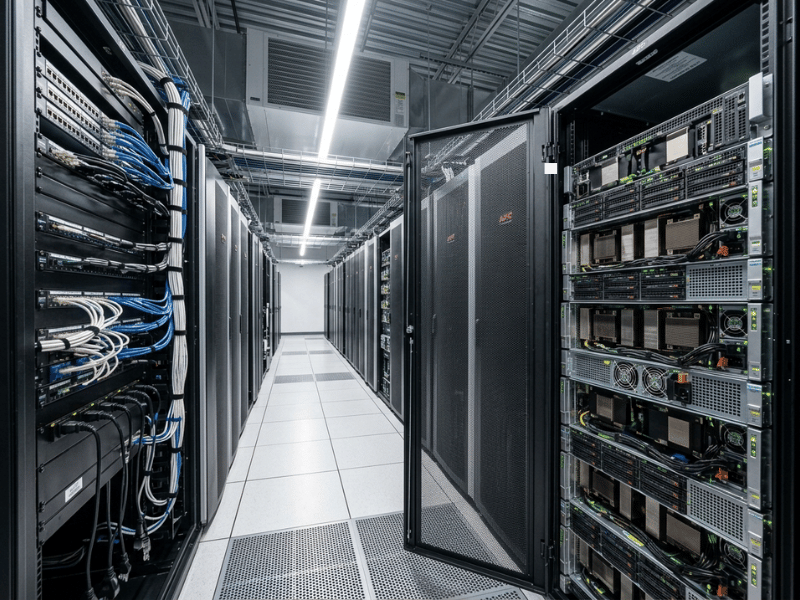
Picture the rack: rows of dense GPU servers humming in a cold aisle, nearly all of them running without a single monitor attached. Then a firmware update stalls at boot, or a driver bug leaves a visualization node dark, and suddenly you need to see the console on a machine that was never built to show you one. That gap between “always headless” and “occasionally must see the screen” trips up more deployments than any spec sheet warns about.
Deploying GPU servers for AI training, rendering, or virtual desktops raises a question teams rarely plan for early: how will these machines actually output a display signal? In dense multi-GPU systems, the answer is not as simple as plugging a monitor into a graphics card. The server chassis, baseboard management controller (BMC), PCIe topology, and cooling all shape what you can see on screen and how you manage the box remotely.
This guide is written for IT managers, data center engineers, and hardware buyers who need to specify GPU servers correctly the first time. You will learn how GPU servers handle display output, how BMC and onboard graphics differ from discrete GPU output, and how visualization, VDI, and remote rendering change your requirements. We will also walk through choosing the right server chassis, with practical notes on cooling, PCIe lanes, and display compatibility.
By the end, you will have a clear framework for matching your display and management needs to the correct chassis for your GPU workloads.
How GPU Servers Handle Display Output
Display output on a server is a management and workload concern, not an afterthought. Unlike desktop PCs, most rackmount GPU servers run headless, meaning they operate without a directly attached monitor. Administrators reach them over the network instead.
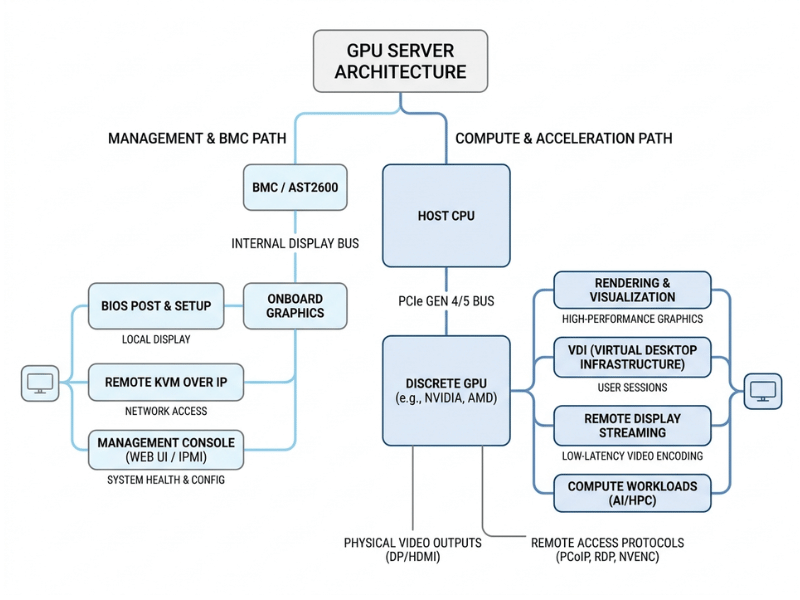
Even so, you still need a reliable way to see the screen during setup, firmware updates, and troubleshooting. GPU servers typically offer two separate display paths:
- Management-level output through the motherboard’s onboard graphics or BMC.
- Workload-level output through discrete GPUs installed in PCIe slots.
Knowing which path does what prevents a common mistake: assuming your compute GPUs will drive the console you use for basic administration.
The Two Display Paths Explained
The management path handles the boot process, BIOS/UEFI screens, and operating system console. It runs even when your discrete GPUs are busy or passed through to virtual machines.
The workload path is different. Discrete data center GPUs from NVIDIA and AMD focus on compute, rendering, or virtualization. Many ship without display connectors at all, since they are built purely for compute. That is exactly why relying on a compute GPU for your console is risky.
BMC and Onboard Graphics vs Discrete GPU Output
Here is the key distinction every buyer should know: BMC and onboard graphics manage the server, while discrete GPUs drive the workload.
Most enterprise motherboards include a BMC with a small integrated graphics processor, often an ASPEED chip. This chip provides a basic VGA or HDMI signal that stays available regardless of what your discrete GPUs are doing.
What BMC/Onboard Graphics Gives You
- Remote KVM over IP: view and control the server console from anywhere, including BIOS screens.
- Out-of-band management: power cycle, monitor, and update the server even when the OS is down.
- Always-on console access: available independent of discrete GPU state.
For headless deployments, the BMC is your primary display tool. In practice, you rarely attach a monitor after the initial racking.
When Discrete GPU Output Matters
Discrete GPU output becomes relevant in specific cases:
- GPU workstations used by engineers, designers, or analysts at a desk.
- Visualization servers are driving high-resolution or multi-monitor displays.
- Control rooms and digital signage that need real-time rendered output.
For these roles, confirm the GPU model actually has display connectors, because many top-tier data center accelerators do not. If local display is a hard requirement, specify a professional visualization GPU rather than a pure compute card.
Multi-GPU Server Visualization and Remote Rendering
Multi-GPU servers create their own display challenges. Once you install four, eight, or more GPUs, coordinating output and resolution handling takes deliberate planning.
Multi-GPU Display Output Considerations
In a multi-GPU chassis, not every card has display connectors, and the PCIe slot arrangement determines which GPUs are accessible. For visualization workloads that span several monitors or a video wall, you need to map outputs deliberately rather than assume every card contributes.
A few practical points:
- Confirm how many display connectors each GPU provides.
- Check whether the chassis layout blocks access to certain output ports.
- Plan cable routing for multi-monitor setups before racking.
Remote Rendering and VDI
Increasingly, display output in GPU servers is virtual. The physical server sits in a data center, while users see rendered pixels on a remote device.
Remote rendering runs demanding graphics on the server, then streams frames to a workstation or thin client. Engineers can work with large CAD or simulation models without a powerful local machine.
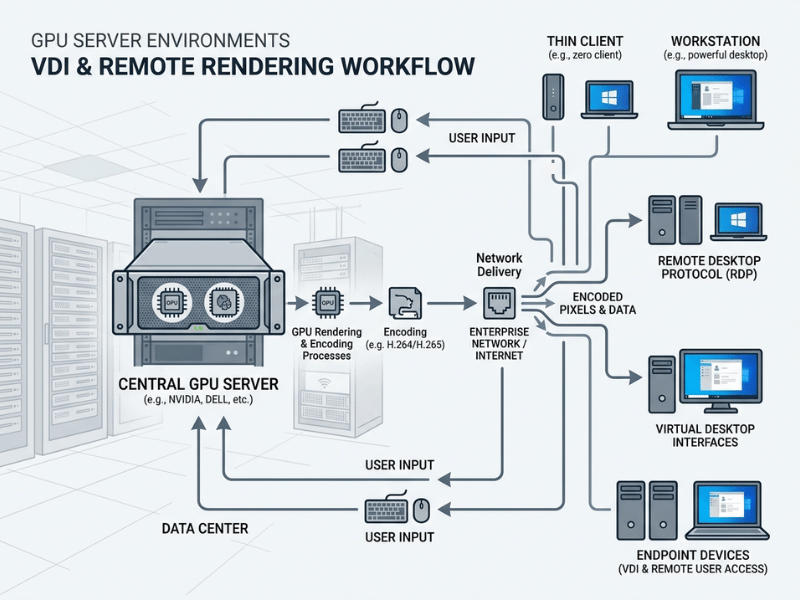
Virtual Desktop Infrastructure (VDI) takes this further. A single GPU server can host many virtual desktops using GPU partitioning technologies like NVIDIA vGPU. No physical monitor connects to the compute GPUs at all. Instead, the display signal is encoded, streamed over the network, and decoded on the endpoint.
For both models, your priorities shift:
- Network bandwidth and latency matter more than local display ports.
- GPU virtualization support must be confirmed on both the card and the hypervisor.
- GPU encoding capability affects streaming quality.
This is a major reason buyers should not over-index on physical display connectors. In VDI and remote rendering, the chassis, cooling, and GPU density matter far more.
Common Display Output Issues in Headless GPU Servers
Even with the specified hardware, display gremlins show up during deployment. Knowing the usual suspects saves you a cold walk to the data center at 2 a.m. Here are the issues that catch teams off guard, and how to clear them.
Black Screen in Remote Desktop Sessions
You install the drivers, connect over RDP, and get a black void instead of a desktop. This is one of the most common headless complaints, and it usually has nothing to do with a broken GPU.
The cause is simple: with no monitor attached, the OS often decides no display session is needed. Remote protocols like RDP and VNC then have no display target to grab, so they launch into nothing. Confirm that the session is targeting the correct adapter and provide the OS with a display to render to. That leads directly to the next point.
Dummy Plugs vs Virtual Display Drivers
When the OS refuses to enable full display output without a monitor, you have two clean fixes.
A dummy plug is a small, resistor-loaded HDMI or DisplayPort connector that fools the GPU into thinking a real monitor is attached. It costs a few dollars, enables hardware acceleration for streaming, and solves a surprising number of “no display” problems. Keep a handful in your parts drawer.
A virtual display driver does the same job in software. It makes the OS believe a screen is connected, which is often required for RDP or VNC to start properly. On Linux, an X11 dummy driver creates a virtual screen that the desktop can draw to. The trade-off is small: a virtual display consumes a sliver of VRAM and GPU resources, which matters only in tightly shared or memory-constrained setups.
Use a dummy plug when you want a zero-configuration hardware fix. Use a virtual display driver when you prefer no extra hardware in the chassis or need precise resolution control.
Multi-GPU Adapter Mapping Issues
In systems with multiple GPUs, the display server can grab the wrong card. Your image renders on a GPU nobody is watching, and the session either fails or feels sluggish because it landed on a weak adapter.
Fix this by mapping the correct PCIe bus ID in your configuration. On Linux, that means the Xorg config; on other systems, it lives in driver settings. Point the display output at the intended card, and the confusion disappears. If a remote session feels slow, verify it is rendering on the powerful discrete GPU rather than the integrated chip or the BMC.
Why BMC Video Does Not Confirm Discrete GPU Readiness
Here is a point that trips up even experienced teams. Seeing the boot screen through the BMC only tells you the motherboard is alive. It says nothing about whether your compute GPU is initialized, cooled properly, or ready to output video.
BMC graphics and your discrete GPU are two separate pipelines, each doing a different job. Validate them independently during deployment. A clean BMC console plus a confirmed GPU render path is the only combination that proves both layers work.
Mini-summary: Most headless display problems trace back to a missing display target, the wrong adapter, or confusing management video with workload video. Each has a fast, known fix.
Choosing the Right Server Chassis for GPU Workloads
The chassis is the foundation of any GPU server. It determines how many GPUs you can fit, how well they stay cooled, and how PCIe lanes and display paths are routed. Getting this wrong forces expensive redesigns later.
Match your chassis to your workload using the factors below.
GPU Capacity and Form Factor
Start with how many GPUs you need and their physical size.
- Rack heights of 2U, 4U, and larger support different GPU counts.
- GPU length and width: full-length, double-width cards demand more internal space.
- Density goals: AI training favors maximum GPU count, while workstations may need fewer, larger cards.
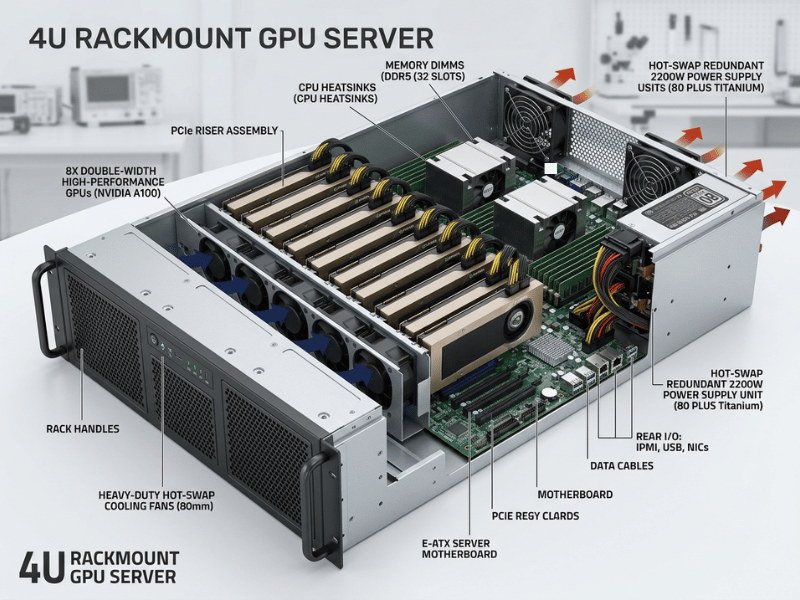
A 4U chassis often balances high GPU density with easier cooling and serviceability, which is why it is popular for AI and rendering nodes.
PCIe Topology and Lanes
PCIe design directly affects performance and expansion.
- Lane allocation: confirm each GPU slot gets adequate lanes (ideally x16) for full bandwidth.
- PCIe generation: Gen4 and Gen5 offer higher throughput for data-heavy workloads.
- Single-root vs multi-root: single-root layouts favor peer-to-peer GPU communication during training, while multi-root layouts spread the load across CPUs.
- Riser and slot spacing: proper spacing supports airflow and lets you use full-size cards.
Also, verify that the PCIe layout leaves clean access to management ports and any GPU display connectors you plan to use.
Cooling for GPU Density
Cooling is the most common failure point in GPU server design. High-density GPUs generate significant heat, and inadequate airflow can throttle performance or shorten hardware lifespan.
Consider these cooling approaches:
- Optimized air cooling: high-static-pressure fans and clear front-to-back airflow work well for many air-cooled chassis.
- Liquid cooling: direct-to-chip liquid cooling handles the highest thermal loads in dense AI clusters.
- Airflow-first chassis design: unobstructed paths, proper baffles, and correct fan placement keep GPUs within safe temperature ranges.
Match cooling capacity to your total GPU thermal output, not just the number of cards. A chassis engineered for airflow protects your investment.
Display and Management Compatibility
Finally, confirm the chassis supports your display and management needs.
- BMC access: Ensure the management port is reachable and cabled in your rack layout.
- Discrete GPU output access: if you need local display, verify slot placement does not block connectors.
- Front or rear I/O: choose the port layout that suits your rack and cabling plan.
A well-chosen chassis serves both the compute workload and the practical need to manage and, when required, view the system.
Common Mistakes to Avoid
Even experienced teams stumble on these points:
- Assuming compute GPUs have display outputs. Many data center cards do not.
- Ignoring the BMC. It is your most reliable management display path.
- Underestimating cooling. Thermal limits, not slot count, often cap real GPU density.
- Overlooking PCIe lane sharing. Starved lanes bottleneck multi-GPU performance.
- Skipping display access planning. Chassis layout can block the ports you need.
Avoiding these keeps deployments predictable and serviceable.
Frequently Asked Questions
Do GPU servers need a monitor connected?
Usually no. Most rackmount GPU servers run headless and are managed remotely through the BMC over the network. You may briefly attach a monitor during initial setup, but ongoing management occurs over IP.
Can I use a data center GPU for display output?
Not always. Many pure compute accelerators ship without display connectors. If you need a local display, specify a professional visualization GPU with video outputs and confirm that the chassis slot placement allows access to those ports.
What is the difference between BMC graphics and discrete GPU output?
BMC or onboard graphics handles server management, including BIOS screens and remote console access, independent of your compute GPUs. Discrete GPU output drives workload visuals for workstations, visualization, or control rooms.
How do GPU servers handle display in VDI setups?
In VDI, the compute GPU renders desktops, which are then encoded and streamed over the network to endpoints. No monitor connects directly to the compute GPUs. Network bandwidth, latency, and GPU virtualization support become the priorities.
What chassis size is best for multi-GPU servers?
It depends on GPU count and cooling needs. A 4U chassis often balances high GPU density with strong airflow and serviceability, making it a common choice for AI training and rendering nodes.
Does PCIe generation affect GPU server performance?
Yes. Higher PCIe generations, such as Gen4 and Gen5, offer greater bandwidth, benefiting data-intensive workloads. Confirm each GPU slot receives adequate lanes to avoid bottlenecks.
Why does my GPU server show a black screen over RDP even though the drivers are installed?
Most likely the OS thinks no monitor is attached, so no display session is created for RDP to capture. Add a dummy plug or configure a virtual display driver to give the OS a render target. Also confirm the RDP session is pointing at the discrete GPU and not an idle or nonexistent adapter.
Do AI training servers need a dummy plug?
No. Pure compute jobs like CUDA training run whether or not a monitor is present, since they never touch the display pipeline. You would only want a dummy plug or virtual display if you plan to stream a desktop or run visual applications from that server.
Can I use the physical display outputs on a GPU while it is passed through to a VM?
Yes, with caveats. When a GPU is passed through to a virtual machine, the guest controls the card and its physical outputs, so you can often plug a monitor in and see the VM directly. Success depends on your hypervisor, the card’s passthrough support, and proper driver setup inside the guest.
Conclusion and Next Steps
Display output in GPU servers is far more than plugging in a monitor. Management access comes from the BMC or onboard graphics, while discrete GPUs handle workloads that may output locally or stream through remote rendering and VDI. The right approach depends on whether you run headless AI nodes, visualization servers, or virtual desktops.
Your key takeaways:
- Use the BMC for reliable, always-on management access.
- Confirm whether your compute GPUs actually provide display connectors.
- Plan for remote rendering and VDI when the display is virtual.
- Keep dummy plugs or virtual display drivers on hand to resolve black-screen issues.
- Choose a chassis that matches your GPU density, PCIe needs, cooling, and display access.
The chassis ties all of this together. If you are specifying GPU servers for AI, rendering, or VDI, start with a rackmount GPU chassis engineered for high GPU density, strong airflow, and flexible PCIe and I/O layouts.
Explore our GPU server case and rackmount chassis lineup to find a platform built for your workload, or contact our team for help matching a chassis to your deployment. What GPU workload are you planning to deploy next?
