


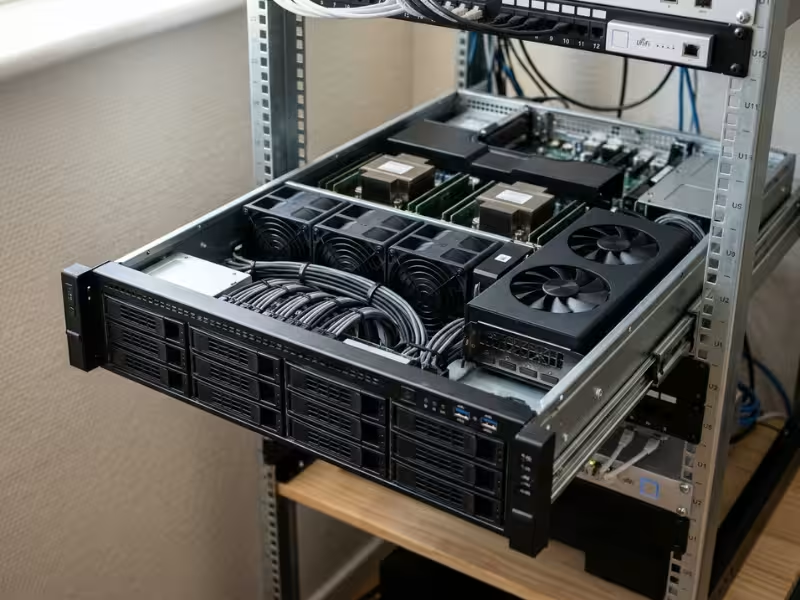
Your Plex server runs fine most nights. Then a friend streams remotely, someone plays a 4K movie, and two more users join. Your CPU jumps to 100%, and playback starts to stutter.
I see this pattern all the time on home servers, NAS boxes, and small self-hosted setups.
GPU transcoding lets your graphics hardware convert video on the fly, so your CPU doesn’t carry the whole load.
This guide explains when Plex transcodes and when a GPU actually helps. It also covers which hardware works best and how to enable and verify it.
Why Plex Transcodes in the First Place
Most people jump straight to the GPU question. I always start one step earlier. Many transcoding headaches come from settings and file formats, not weak hardware.
Direct Play, Direct Stream, and Transcoding
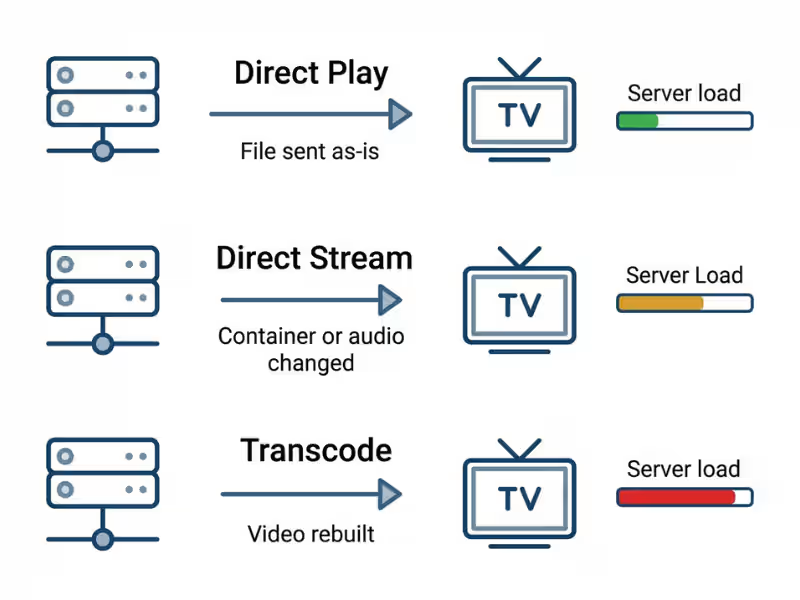
Plex picks one of three paths every time you press play.
Direct Play sends the file to your device exactly as it is. The server barely works.
Direct Stream keeps the video untouched but repackages the container or converts the audio. It costs a little CPU.
Transcoding rebuilds the video into a new format, bitrate, or resolution. This heavy job pushes your CPU to its limit.
Your goal is simple: get as many streams as possible into Direct Play.
Common Reasons Plex Transcodes
When I check a struggling server, the cause usually falls into one of these buckets:
- Unsupported codec: Your TV or browser can’t decode HEVC, AV1, or a certain audio format.
- Bitrate too high: A 60 Mbps remux can overwhelm a device or app with a lower quality cap.
- Resolution mismatch: A 4K file on a 1080p device forces Plex to scale it down.
- Remote bandwidth limits: Your upload speed or the app’s remote quality setting caps the stream.
- Subtitle burn-in: Image-based subtitles like PGS often force Plex to burn them into the video.
- HDR tone mapping: When an SDR screen plays an HDR file, Plex must convert the colors. This ranks among its most demanding tasks.
Fix the triggers you can control first. A GPU then only handles the transcodes you truly need.
What GPU Transcoding Changes—and What It Doesn’t
A GPU can turn a struggling Plex server into a smooth one. It can also disappoint you if you expect it to fix everything.
Where the GPU Earns Its Keep
Transcoding has two heavy steps. Plex decodes the original file, then encodes a new version your device can play. Without hardware help, your CPU grinds through both, frame by frame.
A GPU has dedicated media engines built for this job. Intel Quick Sync and NVIDIA’s NVENC and NVDEC handle decoding and encoding in fixed-function hardware. They work fast, draw little power, and leave your CPU free for library scans and other apps.
The biggest gains show up with multiple users, remote playback, and 4K libraries. On a small NAS box, hardware transcoding often decides whether a stream stutters or plays smoothly.
Where It Won’t Save You
Subtitle burn-in can still hit the CPU. Part of that work may fall back to the processor.
Tone mapping depends on your platform. Hardware HDR tone mapping works on some combinations of OS, GPU, and Plex version, but not all.
Audio usually stays on the CPU. It’s light, but it still counts on a weak processor.
Some problems aren’t transcoding problems. Slow upload speeds, Wi-Fi drops, or a weak client app can all cause buffering. No GPU can fix a poor network link.
Do You Actually Need GPU Transcoding for Plex?
I ask every Plex owner this question before they spend a dollar. Run through the scenarios below and see where your setup lands.
You Probably Do
A GPU pays off fast when your server handles several streams at once. Three family members on different screens can push a mid-range CPU past its limit.
Remote streaming raises the odds, since many remote sessions run at lower quality and get transcoded. A 4K library adds more pressure. One software transcode from 4K HEVC to 1080p can eat most of a CPU.
Mixed devices matter too. Older smart TVs, browsers, and consoles support different codecs. And if your server runs on a low-power NAS chip or mini PC, hardware help often makes the difference.
You May Not
If your dashboard shows Direct Play for almost every session, your server barely works.
One or two local users rarely stress a modern system. H.264 video with AAC or AC3 audio plays directly on nearly every device. A recent Core i5 or Ryzen 5 also handles an occasional 1080p software transcode without trouble.
In these cases, a GPU adds cost, heat, and power draw without much benefit.
A Better First Fix Than Buying a GPU
Try these free changes first:
- Set client quality to “Original” or “Maximum” for local and remote playback.
- Use SRT text subtitles instead of image-based PGS files.
- Keep Direct Play-friendly copies of problem files, or use Plex’s Optimize feature.
- Test your real upload speed and match your remote streaming limit to it.
Watch your dashboard for a few days. If transcodes still pile up, you have a solid case for a GPU.
Best Hardware Options for Plex GPU Transcoding
There’s no single best GPU for Plex. The right choice depends on your stream count, your library, and how much power, space, and airflow your server has.
Intel Quick Sync: The Smart Default for Most Plex Servers
For most new Plex builds, I point people to an Intel CPU with integrated graphics first. Quick Sync lives inside those chips, and Plex supports it very well.
It sips power, adding only a few watts while it transcodes. A recent chip can usually handle several 1080p transcodes at once. Newer generations also handle 10-bit HEVC and HDR far better, so choose a recent model if 4K matters to you.
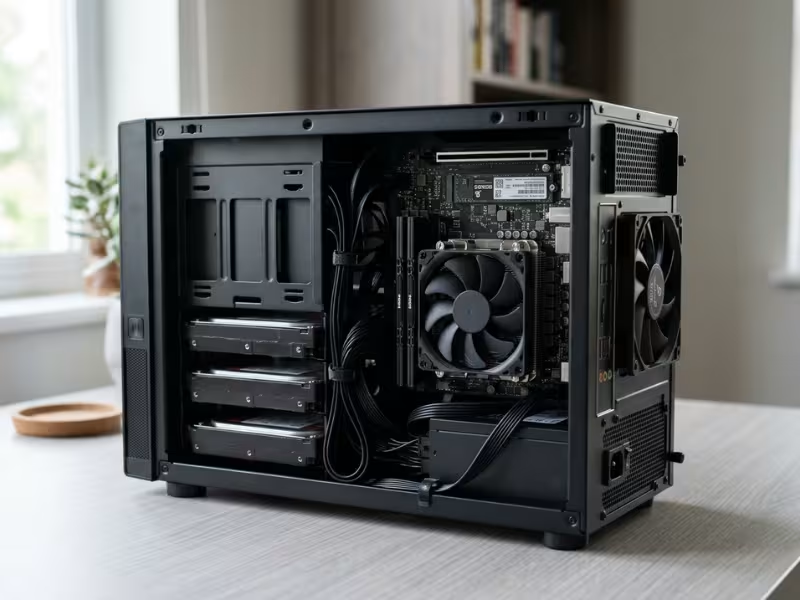
Quick Sync shines in compact builds. Mini PCs, small towers, and NAS-style servers gain strong transcoding with no extra card, heat, or PCIe slot. If you’re planning a small media server, compare server case options for drive bays, airflow, and footprint before you lock in the platform.
One quick check: Intel chips with an “F” suffix have no iGPU, so they have no Quick Sync.
NVIDIA GPUs: More Headroom for Busy Servers
When Quick Sync runs out of room, a dedicated NVIDIA card comes next. I recommend this path for many remote users, heavy 4K libraries, or CPUs without an iGPU.
NVDEC decodes the source, and NVENC encodes the new stream. Both run separately from the gaming cores, so even a modest card handles a solid number of streams.
- Newer generations encode better at the same bitrate.
- More VRAM helps when several 4K streams run at once.
- Session limits vary. GeForce drivers cap simultaneous encode sessions, and that cap has changed over time. Check the current limit for your card.
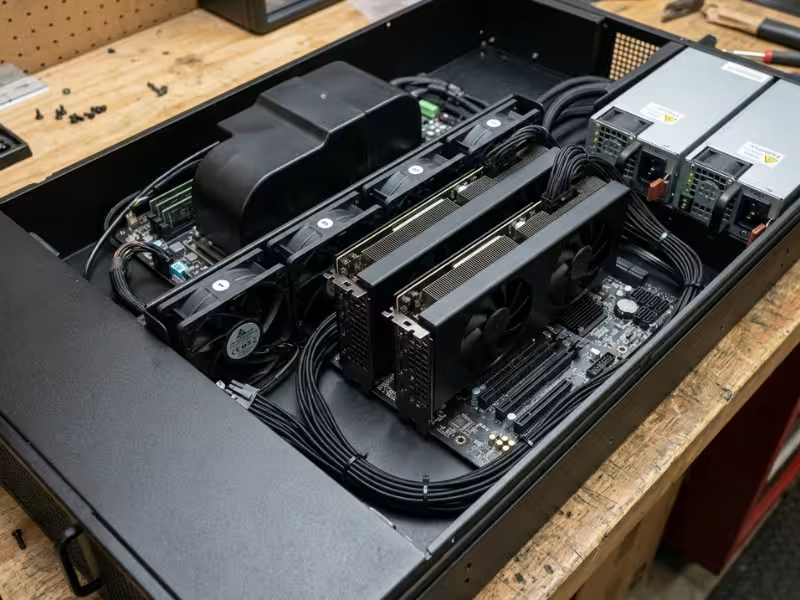
The trade-offs are power, heat, and space. A dedicated card draws more idle power than an iGPU and needs a free PCIe slot with good airflow. In Plex builds, the case matters as much as the card. It must provide clearance, a clean cooling path, and power headroom for long sessions. For multi-GPU or high-airflow builds, a purpose-built GPU server case makes that much easier.
AMD GPUs: Possible, But Not My First Pick
AMD hardware can transcode in Plex, and support keeps improving. If you already own an AMD card or a Ryzen iGPU, test it before you buy anything.
Still, support varies more by platform, and Linux setups can take extra effort. If you’re spending money specifically for Plex, Intel and NVIDIA give most users a smoother path.
What Matters Beyond the GPU Itself
- Plex Pass: Hardware transcoding requires an active subscription.
- Drivers: Outdated drivers top the list of reasons Plex can’t use the GPU.
- OS support: Hardware tone mapping depends on your OS and GPU.
- CPU power: Audio and some subtitle work still run on the CPU.
- Cooling and power: A GPU that throttles under heat drops streams. Plan airflow and PSU headroom for 24/7 use.
How to Enable GPU Transcoding in Plex
Turning on hardware transcoding takes a few clicks. The details around those clicks decide whether it works.
Start With the Basic Setup
First, install current GPU drivers from Intel or NVIDIA directly.
Second, confirm your Plex Pass. Sign in to the server with the subscribed account.
Third, turn on acceleration. Open Settings > Transcoder, click Show Advanced, and check Use hardware acceleration when available and Use hardware-accelerated video encoding. If you have more than one GPU, pick it from the Hardware transcoding device menu. Then restart Plex.
Windows and Standard Desktop Setups
On Windows, most problems come from the BIOS. Many motherboards switch off the Intel iGPU when you install a dedicated card, so re-enable it if you want Quick Sync.
Keep the server out of deep sleep modes. After major updates, recheck the transcoder device menu, since updates sometimes reset it.
Linux, Docker, and Unraid: Watch the Permissions
On Linux, Plex needs direct access to the GPU device, which lives under /dev/dri for Intel and AMD. Add the Plex user to the video and render groups.
In Docker, pass that device into the container. For NVIDIA, install the NVIDIA Container Toolkit and make sure the container’s driver capabilities include video. People forget this step more than any other.
On Unraid, install the matching Intel or NVIDIA plugin first, then add the GPU to your Plex template. In Proxmox LXC containers, match the render group ID inside the container. A mismatched ID causes silent failures.
Settings Worth a Second Look
Tone mapping: Enable it only if your platform supports it in hardware.
Subtitles: In each client, set Burn subtitles to Only image formats.
Transcoder temp directory: Point it at a fast SSD, not a spinning drive or network share.
Transcoder quality: Automatic suits most servers. Weak systems can try Prefer higher speed encoding.
How to Verify Hardware Transcoding Is Actually Working
A checked box proves nothing. I’ve debugged many servers that had acceleration “on” for months while the CPU did all the work.
Test with a real stream. Play a movie and drop the quality to around 720p at 2 Mbps. That forces a transcode.
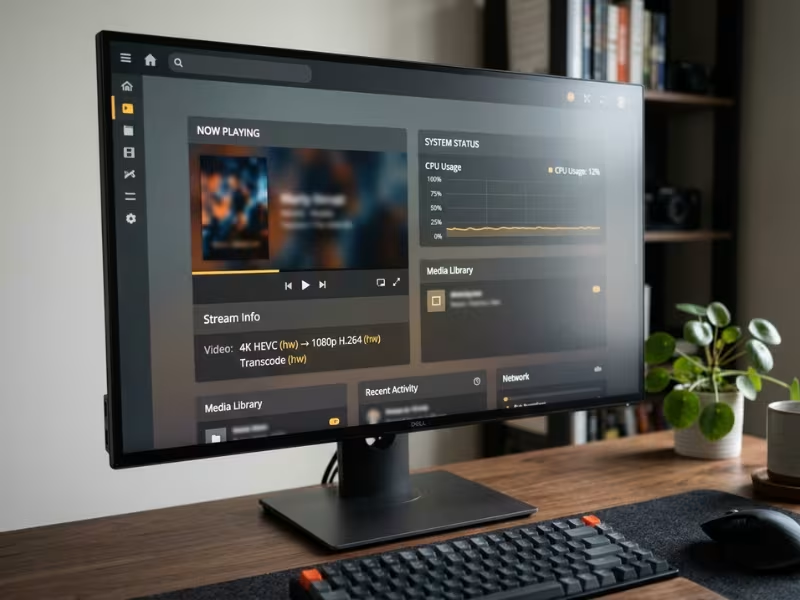
Open the Dashboard in Plex Web and expand the stream under Now Playing. If the video line shows Transcode (hw), the GPU is working. If it only says Transcode, Plex fell back to software.
Check both sides. You want (hw) on decode and encode. If it appears on only one side, your GPU may not support the source codec.
Then compare CPU load. A software 1080p transcode can push a small CPU past 80%. The same stream in hardware often stays under 15%.
For a closer look, watch the Video Encode graph in Windows Task Manager, or use nvidia-smi or intel_gpu_top on Linux. Tautulli also flags hardware transcodes in its history. Rerun these checks after every driver, Plex, or container update.
Common Plex GPU Transcoding Problems
Most issues show up as a handful of symptoms. Find yours, then work through the fixes in order.
The CPU Stays Busy With Acceleration On
If the stream shows Transcode without (hw), check for a missing Plex Pass, an unchecked hardware encoding box, or an unsupported codec like AV1 on an older chip.
If both sides show (hw), look at audio and subtitles. A TrueHD track converting to stereo can keep a small CPU busy.
Plex Doesn’t See the GPU
Confirm you don’t have an “F” chip, and re-enable the iGPU in the BIOS. Update drivers, Plex, and on Linux, your kernel. Headless Windows servers sometimes need an HDMI dummy plug to wake the iGPU.
4K HDR Buffers or Tone Mapping Runs Too Heavy
If decoding shows (hw) but the CPU sits near 100%, tone mapping likely fell back to software. Let HDR TVs Direct Play, keep a 1080p SDR copy for remote users, or move to a newer GPU. Also check bitrate, since an 80 Mbps remux can choke Wi-Fi.
Subtitles Trigger a Surprise Transcode
PGS, VobSub, and styled ASS subtitles often force burn-in. Switch to SRT files and watch for forced tracks that turn on automatically.
Docker or Unraid Blocks the GPU
Check whether the GPU device actually appears inside the container. If it does, compare group permissions with the Plex user. On Unraid, confirm your GPU plugin updated along with the OS.
Is a GPU Worth It for Your Plex Server?
Most people should not buy a GPU yet. Let your dashboard decide, not a forum thread.
Start With the Hardware You Already Own
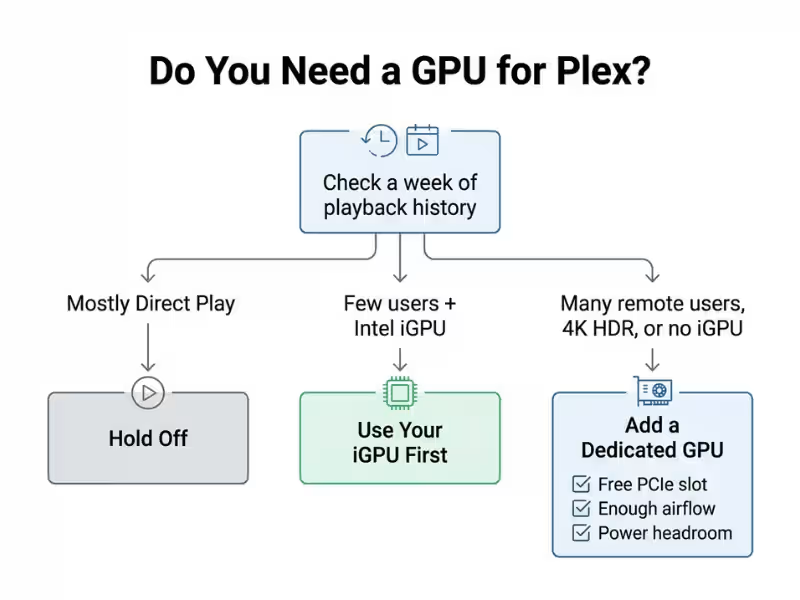
If your server has an Intel iGPU, you may already own a capable transcoder. Enable it and force a few test streams. For a few local screens and an occasional remote viewer, that’s often enough.
Buy a Dedicated GPU When Your Server Proves It Needs One
A card makes sense when several remote users stream at once, your library leans on 4K HDR, or your CPU has no iGPU. A modest NVIDIA card with a recent NVENC generation usually offers the best value.
Before you order, confirm three things:
- You have a free PCIe slot with enough clearance.
- Your case moves enough air across the card.
- Your power budget can absorb its 24/7 idle draw.
If your current enclosure falls short, a 4U GPU server case gives you a practical balance of cooling, card clearance, and upgrade room.
Hold Off If Direct Play Already Wins
Review a week of playback history. If most sessions show Direct Play, spend the money on storage or networking. Revisit the decision when you add remote users or 4K files.
Plex GPU Transcoding FAQs
Does Plex hardware transcoding require Plex Pass?
Yes. Without an active Plex Pass on the server owner’s account, Plex sends every transcode to the CPU.
Can an Intel iGPU handle Plex transcoding?
Yes, and it’s the best starting point for most home servers. Avoid “F” models, and choose a newer generation for 10-bit HEVC.
Why is Plex still using the CPU?
Check the dashboard for (hw). If it’s missing, look at Plex Pass, drivers, and codec support. If it’s there, audio or subtitles are the likely cause.
Does hardware transcoding reduce video quality?
Slightly, at the same bitrate. Newer encoders close most of the gap, and most viewers won’t notice.
Can Plex hardware transcode 4K HDR?
Yes, if your GPU supports 10-bit HEVC decoding and hardware tone mapping works on your platform.
Does Docker or Unraid change the setup?
The Plex settings stay the same. You just need to pass the GPU into the container and keep permissions and plugins in sync.
Fix the Stream, Then Build the Platform
A GPU can rescue a busy Plex server, but it works best as your last step.
Start by cutting needless transcodes with Original quality settings, SRT subtitles, and Direct Play-friendly files. Then confirm your Plex Pass and hardware support, enable acceleration, and test with a real stream. Look for (hw) on both lines before you trust it.
If you do add a dedicated card, give it a proper home. Plan for clearance, airflow, and power headroom from the start. The right case keeps your transcoder cool and stable as your library and user list grow.
