


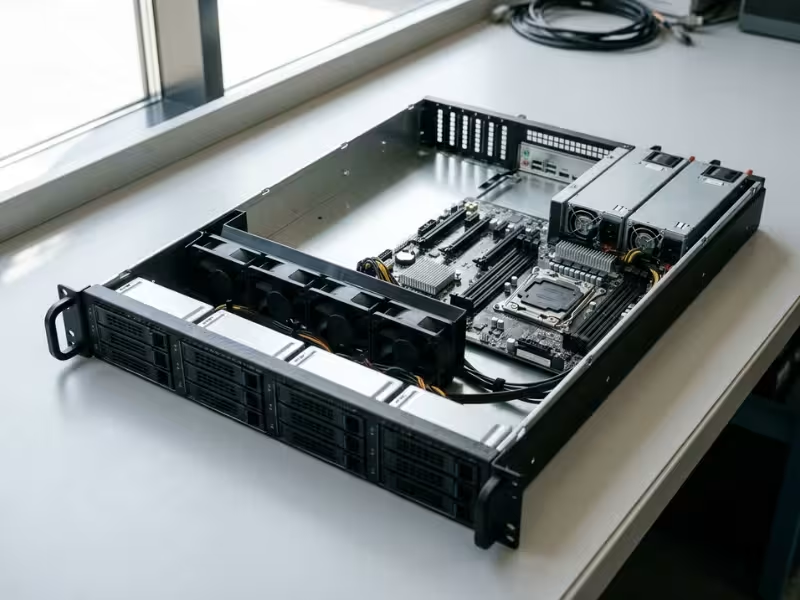
Many buyers see the price of a barebones server and assume the machine is nearly ready to run. Then the box arrives. Inside sits a solid chassis, a motherboard, and a power supply, but no CPU, no memory, and no drives.
This happens often with home lab builders, small business teams, and first-time server buyers. They expect a working system and end up with a shopping list instead.
A barebones server is a partly built system. It gives you the chassis, motherboard, and power supply, and it usually leaves the core components for you to choose.
This guide covers what usually comes in the box and what you still need to buy. It also shows how to tell whether a barebones platform fits your workload, so you can skip costly surprises.
What a Barebones Server Usually Includes
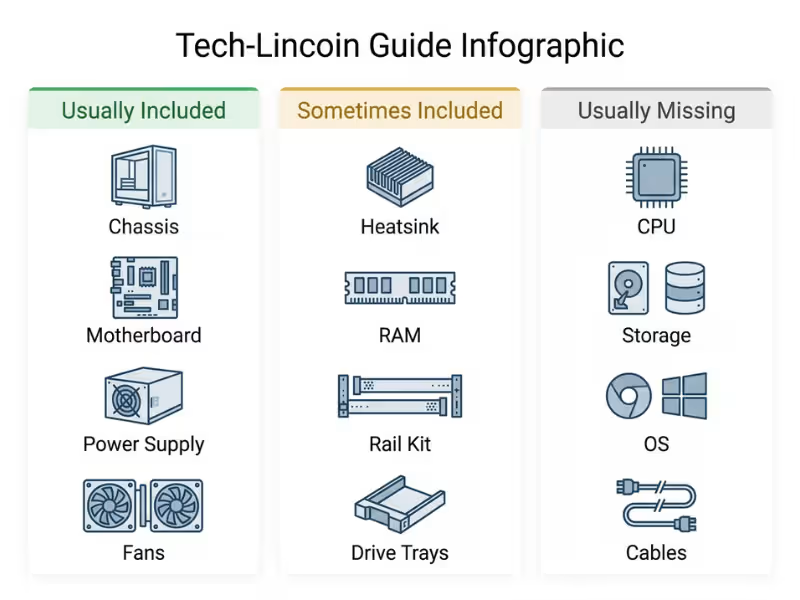
Treat “barebones” as a starting point, not a standard. Two kits with the same label can arrive with very different parts. Here’s what you can usually expect to find in the box.
The Chassis, Cooling, and Physical Layout
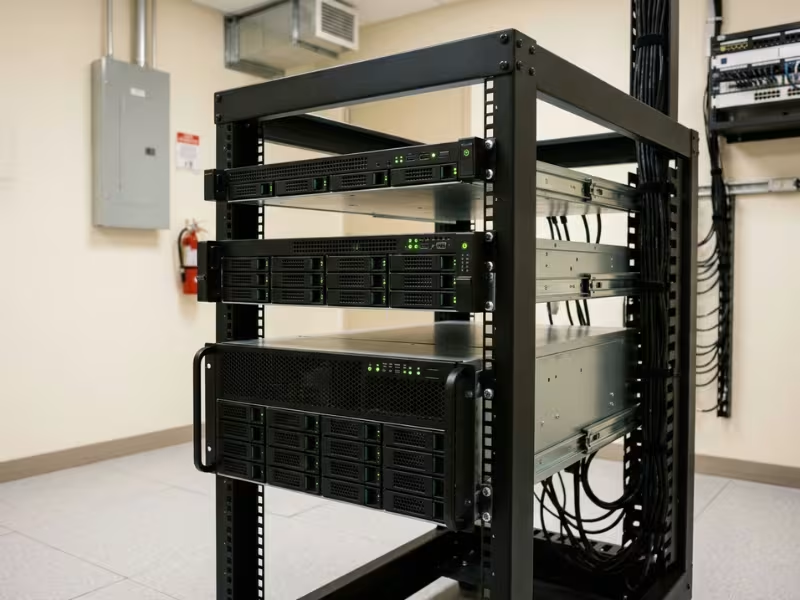
The chassis is the backbone of every barebones kit. It sets the form factor: tower, 1U, 2U, or 4U. If you plan to deploy in a rack, compare rackmount case options early, because the enclosure decides how many drives, cards, and fans you can fit later.
Most vendors pre-install the fans and shape the airflow with shrouds or baffles. Leave those plastic shrouds in place. They guide cool air across the CPU and memory.
You also get the drive bays. Better models offer hot-swap bays with a backplane, so you can replace a failed drive without shutting down. On the front panel, expect power and reset buttons, plus status LEDs.
The Motherboard and Onboard Features
Nearly every barebones server ships with the motherboard installed. This board defines what the system can become.
Check the expansion slots first. The number and speed of PCIe slots limit what you can add later, such as network cards, RAID controllers, or GPUs.
Most boards include two or more Ethernet ports and a built-in SATA or SAS controller. Depending on the model, the board may also offer:
- IPMI or BMC remote management to power on, monitor, and reinstall the system from anywhere
- ECC memory support to catch and fix memory errors before they corrupt data
- A dedicated management LAN port
Not every board includes these. Confirm them on the spec sheet before you price the build.
The Power Supply
The power supply is almost always included. The real question is which kind.
Entry-level towers often ship with a single PSU. Rackmount units frequently come with redundant, hot-swappable PSUs. If one fails, the other keeps the server running.
Check wattage and efficiency. A 500W unit may look fine today, then fall short when you add GPUs. An 80 PLUS Platinum or Titanium rating also trims the power bill on a box that runs 24/7.
Sometimes Included, but Never Assume
This is where most buying surprises happen. Some vendors bundle extra parts. Others leave them out, even within the same product line.
These items may or may not come in the box:
- CPU: True barebones kits usually skip it.
- Heatsink: Server coolers are often platform-specific and hard to source.
- RAM: Rarely included, though some kits add a starter module.
- Rail kit: Often sold as a separate accessory.
- Drive trays or caddies: Some kits fill every bay, others ship a few or none.
The rule is simple. If the spec sheet doesn’t list it, plan to buy it.
What Is Usually Missing
The price on a barebones server covers the foundation, not a working machine. These gaps decide what the server will actually cost.
Storage
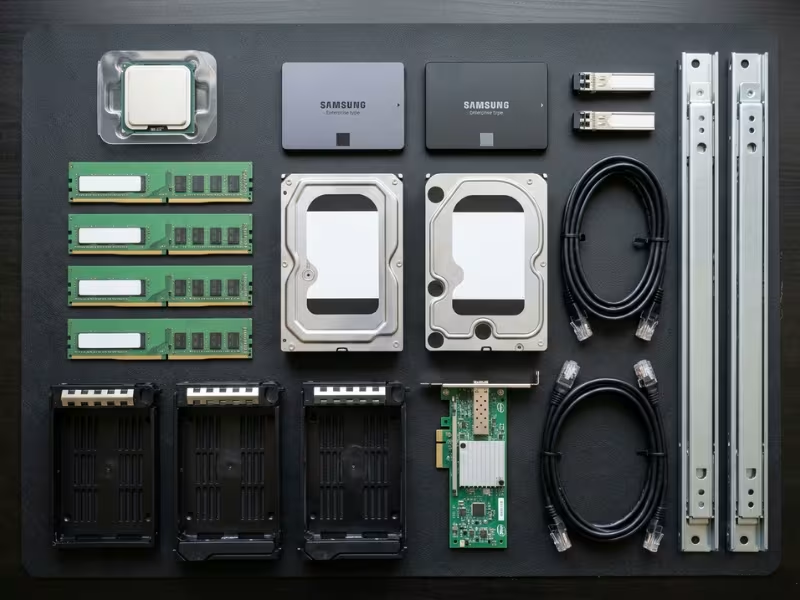
Almost no barebones kit ships with hard drives or SSDs. You choose and buy every drive.
Confirm which interfaces the board and backplane support. A 2.5-inch bay may accept SATA but not NVMe. Some boards also share PCIe lanes between M.2 and expansion slots, so using one can disable another.
Then count the trays. If your kit includes two caddies for eight bays, you’ll need the rest. Third-party trays often fit poorly, so stick with the vendor’s part numbers.
CPU and Memory
True barebones kits usually leave out the processor and RAM. These two parts often make up the biggest share of the final bill.
The CPU must match the socket and chipset, and the BIOS must support it. A newer chip may fit the socket but refuse to boot until you update the firmware.
Memory has its own rules. Check the type (DDR4 or DDR5), the format (UDIMM or RDIMM), the maximum capacity, and whether ECC is required. The wrong modules can leave a server that powers on but never boots.
Operating System and Software
Most barebones servers arrive with no operating system. Your workload drives the choice.
Linux suits web services and general workloads. Windows Server fits Microsoft-heavy offices. TrueNAS works well for storage, and Proxmox is a popular pick for virtualization.
Watch the licensing. Windows Server is licensed per core, so a high-core-count CPU can push software costs up fast.
Accessories and Deployment Extras
Buyers often forget this category until install day. A rackmount server without rails ends up sitting on a shelf.
Plan for any cards your setup needs:
- Extra NICs for 10GbE or 25GbE networking
- A RAID or HBA card if the onboard controller falls short
- A GPU for AI, video transcoding, or rendering
Then add the small items: network cables, SFP+ optics or DAC cables, and power cords with the right plug. Walk through the actual rack or closet before you finalize the parts list.
Why This Matters Before You Buy
A parts list looks harmless on paper. In a real purchase, every missing item becomes a cost, a delay, or a risk.
Picture two 2U barebones servers listed at nearly the same price. The first ships with all twelve drive trays, a rail kit, and the CPU heatsink. The second ships with the chassis, board, and PSU only. Once you add trays, rails, and a heatsink to the second, it can cost a few hundred dollars more. The cheaper listing often turns out to be the pricier server.
Compatibility mistakes hurt even more. A common case: a buyer orders a high-end CPU and 256GB of memory before checking the board. The board needs a BIOS update for that processor and accepts a different memory format. Now the unusable parts cost more than the chassis, plus restocking fees and weeks of delay.
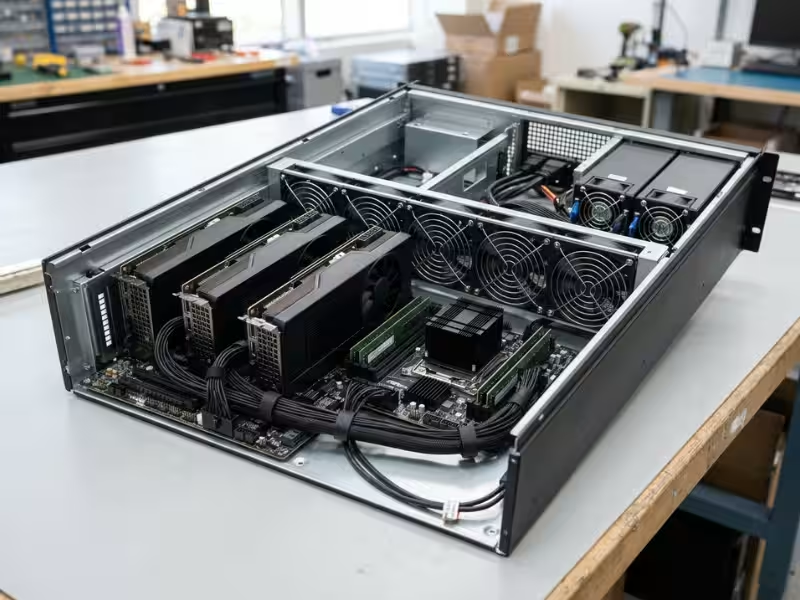
The stakes also rise with the workload. A basic home file server can get by with very little. A virtualization host or GPU build cannot. For those systems, the chassis and platform must deliver:
- Remote management, so you can fix a frozen server without driving to it
- Airflow, because GPUs and packed drive bays heat up fast
- Power budget, so the PSU keeps headroom after every card goes in
- Expansion, so you have enough PCIe slots and lanes to grow
So read the spec sheet as a risk report, not a feature list. Every missing line is something you’ll pay for later.
How to Choose the Right Barebones Server
Don’t start with brands or prices. Work through a short decision path, one question at a time, and the right platform becomes much easier to spot.
Start With the Workload
A well-built chassis means nothing if it can’t handle the job. So ask one question first: what will this server do every day?
Each workload pushes a different spec to the top:
- File storage and backup: Storage density comes first. Count bays and check supported drive sizes.
- Small business apps: Moderate CPU cores, solid RAM, and remote management usually cover it.
- Virtualization: The RAM ceiling matters most, with core count close behind.
- GPU or AI work: Check PCIe slots, slot spacing, and power headroom first. In these builds, the chassis often becomes the limit, so a purpose-built GPU server case with the right cooling path and PSU layout makes planning easier.
- Edge or tight spaces: Size, network bandwidth, and remote management beat raw power.
Write down your top two priorities. Then filter models by those numbers, not by product photos.
Check Compatibility Before You Price the Build
This step saves the most money, and most buyers rush it. Treat the motherboard spec sheet like a contract. If a part isn’t on it, don’t buy it.
Check in this order:
- CPU socket and processor family. The same socket may support one generation but not the next.
- Memory rules. Match type, format, and maximum capacity. Then check whether ECC is required or simply supported.
- Drive interface and bay count. Make sure the backplane works with your SATA, SAS, or NVMe drives.
- PCIe slots and lanes. A slot that looks like x16 may only run at x8.
- BIOS and firmware. Newer CPUs often need an update before first boot.
- The vendor’s QVL. The qualified vendor list shows tested CPUs, memory, and drives. Off-list parts may work, but you’re on your own if they don’t.
Pay Attention to Management and Reliability Features
These features feel optional until 2 a.m., when a server freezes and nobody is on site.
Remote management tops the list. IPMI, Dell iDRAC, and HPE iLO let you reboot, watch temperatures, and reinstall an OS from a browser. ECC memory quietly fixes small errors that would otherwise crash the system. Redundant PSUs keep it running when one supply fails.
Then look at thermal design: fan zones, air shrouds, and enough cooling for your hottest cards. A desktop cools off every night. An always-on server runs hot for months, so small weaknesses surface fast.
Don’t Ignore Noise, Power, and Space
A server can pass every spec check and still fail in the room where it lives.
Start with noise. 1U systems use small, fast fans that can sound like a hair dryer under load. That’s fine in a data center but a dealbreaker in an office. 2U and 4U chassis use larger, slower fans and run much quieter.
Power adds up too. A server pulling 200W around the clock uses about 1,750 kWh a year, which can cost more than a budget chassis.
Then check space. Rackmount servers need a rack, rails, and real depth, often 30 inches or more. Before you price the full build, compare server case formats against your actual rack, closet, or shelf. Measure first, then order.
Estimate the Real Total Cost
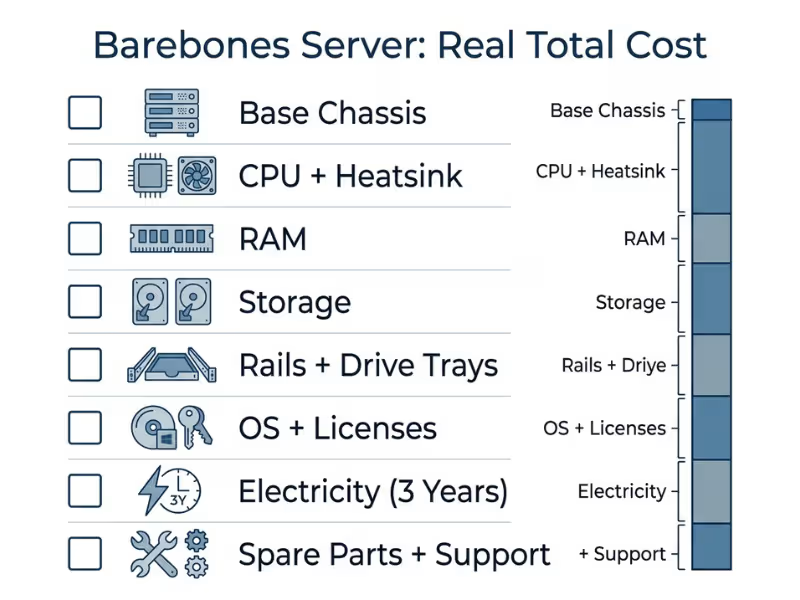
Before you compare prices, build a full cost sheet for each model:
- Base chassis price: the barebones kit itself
- CPU: plus the heatsink if it isn’t included
- RAM: enough for today, with slots left for growth
- Storage: data drives, plus a boot SSD
- Rail kit and drive trays: often sold separately
- OS and software licenses: per-core licensing adds up fast
- Electricity: three years of running costs
- Spare parts and support: a spare fan, a spare drive, or an extended warranty
Compare the totals side by side. The lowest list price rarely wins. The platform that fits your workload with the fewest add-ons usually does.
When a Barebones Server Makes Sense—and When It Doesn’t
A barebones server rewards buyers who plan. See which group sounds more like you before you add one to your cart.
Good Fit For
A barebones kit works best when you already know the job. If you can say, “This box will run six VMs and back up four office PCs,” you can pick parts with confidence.
It also suits teams that want flexibility or already have a clear parts list. You skip the vendor markup on parts you’d replace anyway.
Standardized fleets benefit too. Running the same drives and memory across many servers keeps spares interchangeable and swaps quick.
Not the Best Fit For
Skip barebones if you need a working server this week. Sourcing parts, flashing firmware, and testing can stretch a project from days to weeks.
It’s also risky for teams without compatibility experience. One wrong memory format can stall the whole build.
Some environments need a single phone number for support. With a barebones build, the chassis, drive, and memory vendors may each blame someone else. Many buyers also forget the labor: cabling, BIOS updates, OS installs, and burn-in testing all take real hours.
Common Buying Mistakes
Most barebones problems don’t come from bad hardware. They come from small assumptions at checkout. These four show up most often.
Assuming Every Kit Comes With the Same Parts
One vendor ships a 2U kit with heatsinks, trays, and rails. Another sells a near-identical model with just the chassis, board, and PSU. Even SKUs in the same line can differ.
Read the “package contents” section, not the product title. When in doubt, ask the seller and get the answer in writing.
Pricing Only the Chassis
The kit price is the first number buyers see, so it becomes the one they compare. In a typical build, the chassis can end up as less than a third of the final bill.
A $900 kit can easily become a $3,500 server. Price each option as a complete, bootable system, then compare.
Buying CPU or RAM Before Checking the Support List
This mistake usually starts with a good deal on processors or memory. Flip the order. Pick the barebones model first, then check its QVL and BIOS release notes for your exact board revision. Open-box returns rarely get your full money back.
Overlooking Noise, Airflow, Rails, Caddies, or PSU Headroom
These details look minor on a spec sheet but decide install day. A 1U box may be too loud for an office. Missing caddies leave bays unusable. A PSU near its limit can cause throttling and random shutdowns. Size the PSU so the full build draws no more than about 70–80% of its rating.
Barebones Server FAQs
Does a barebones server come with a CPU?
Usually not. True barebones kits leave the processor out so you can choose your own. Some vendors bundle one under a separate SKU. Check for the heatsink too, since server coolers often fit only one platform.
Does it include RAM or storage?
Almost never. Before you order, note the memory type and format, whether ECC is required, and which drive interfaces each bay supports. Add a small boot SSD so the data bays stay free.
Can I use a barebones server for a home NAS?
Yes. A 2U or 4U chassis, or a tower with four to eight bays, makes a solid NAS. Pair it with TrueNAS or Unraid for far more flexibility than an off-the-shelf box. Pick large, slow fans and check idle power draw, since a NAS runs all day.
Is a barebones server actually cheaper than a prebuilt server?
Sometimes. It saves money when you already own compatible parts or want specific drives and memory. It loses its edge when you buy everything new and count your setup time. Price both as complete systems before deciding.
What should I check first before ordering one?
Start with your workload. Then confirm your planned CPU, memory, and drives appear on the motherboard’s QVL. Finally, verify what ships in the box, especially trays, rails, and the heatsink.
Buy the Plan, Not the Price Tag
A barebones server gives you something a prebuilt box rarely does: control. You choose the CPU, memory, drives, and chassis layout that fit your work.
That control only pays off when you do the homework first. The list price buys a foundation, not a finished server.
Before you order, take four steps:
- Define your workload and its top two priorities.
- Verify exactly what ships in the box.
- Check the vendor’s compatibility list for every major part.
- Calculate the full build cost, from rails to electricity.
If the numbers still work, pick the chassis that matches your rack, airflow, and expansion needs, and build with confidence.
