


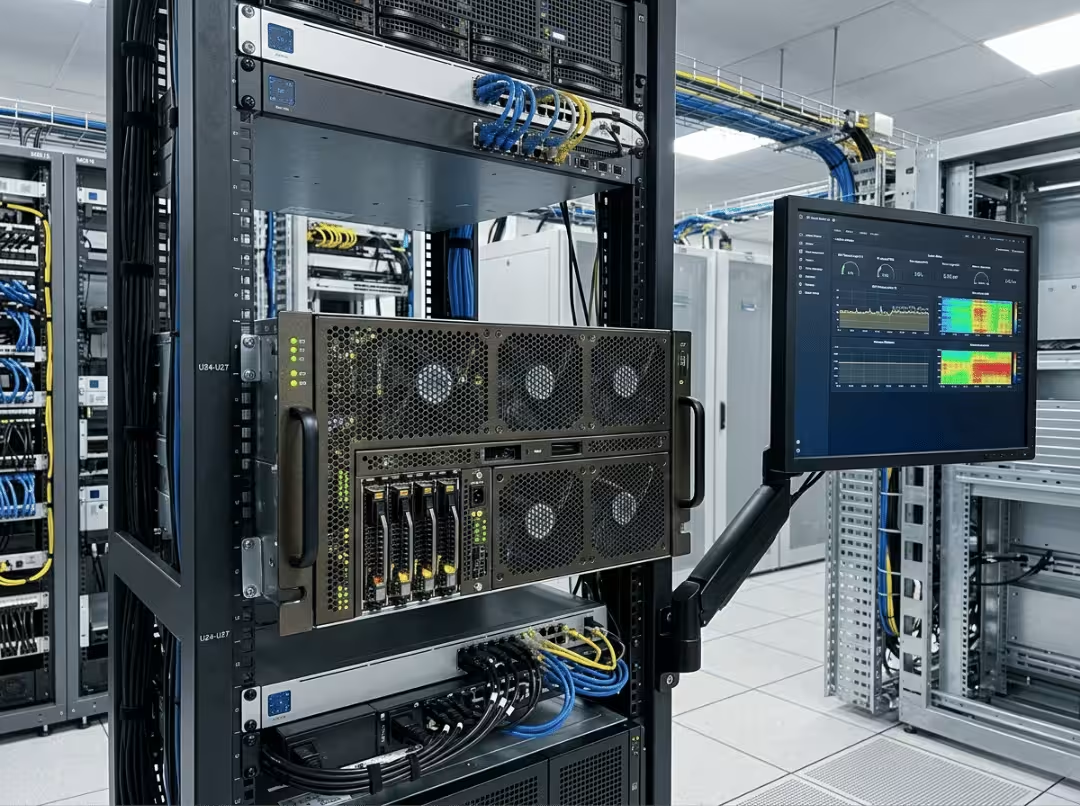
Quick answer: GPU scaling processes the image inside the GPU before output; display scaling happens inside the monitor after the signal arrives. On servers, start with display scaling when compute matters most—switch to GPU scaling only when image consistency justifies the cost, and always verify before standardizing.
Two admins asked to explain the difference between GPU scaling and display scaling will often give two different answers. Sometimes contradictory ones. The confusion is forgivable on a desktop, where the wrong setting costs you a slightly soft image at worst. On a server, the stakes are different. GPU cycles are shared with inference, encoding, and virtual desktops. Many machines never connect to a local monitor at all.
This article treats scaling as a resource allocation decision rather than a display preference. You’ll learn where each mode sits in the display pipeline, why the server context changes the calculus, and how to match the right mode to each workload type. By the end, you’ll have a four-step decision framework, a practical verification method, and a table of defaults you can apply across a real mixed fleet.
GPU Scaling and Display Scaling: What’s the Actual Difference?
Both modes solve the same problem—rendering a non-native resolution onto a display—but they solve it at different points in the signal chain.
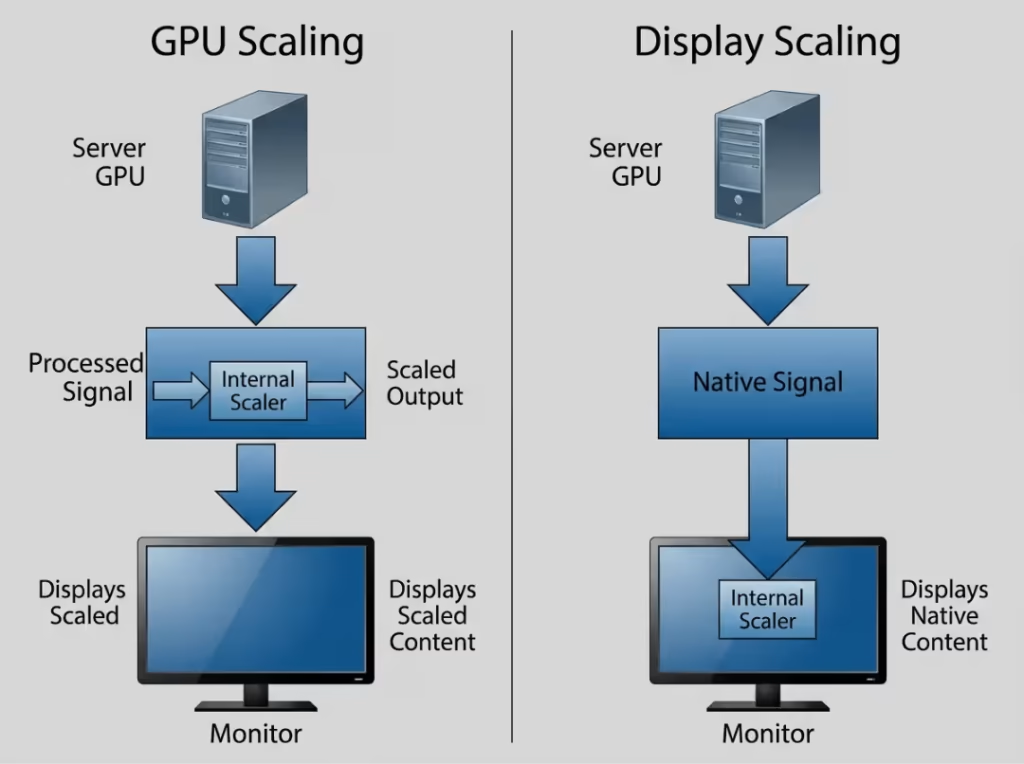
GPU scaling processes the image before it leaves the card. The GPU takes the source resolution, resamples it to match the target resolution, and sends an already-scaled signal down the cable. The monitor receives a signal that already matches its native panel and displays it as-is. The processing cost stays on the GPU.
Display scaling works the opposite way. The GPU sends the signal at source resolution, and the monitor’s internal scaler does the resampling—stretching or shrinking the image to fill the panel. The processing burden moves to the monitor’s scaler chip, and the GPU never touches it.
The real distinction isn’t which one looks better. It’s who bears the compute cost and who controls the output. GPU scaling means the card owns both. Display scaling means the monitor handles resampling entirely, leaving the GPU out of it.
That’s the split that drives the decision. If GPU headroom is tight, display scaling is where you start—it completely removes scaling from the GPU’s workload. If consistent, controlled output across different panels is what matters, GPU scaling gives you a single deterministic scaling engine regardless of which monitor is attached. A simple mental model: GPU scaling is “scale, then send.” Display scaling is “send, then scale.”
Why This Matters More on Servers Than on PCs
On a desktop, scaling is a personal preference. On a server, it’s an operational variable with real consequences for compute, remote access, and incident response.
Server GPUs often do far more than drive a display
A desktop GPU exists almost entirely to push pixels to a monitor. A server GPU rarely gets that luxury. It may be running inference, encoding video, hosting virtual desktops, or passed through to a VM doing something critical. Every cycle spent rescaling a console frame is a cycle not spent on the workload the hardware was bought for. On a GPU server running a training job or an encoding pipeline, that trade-off almost never makes sense—the display is incidental; the GPU is the whole point.
Many servers don’t have a locally connected display at all
A large share of production servers run headless. Admins reach them through IPMI, Dell iDRAC, HPE iLO, a KVM switch, or a remote desktop session. In those environments, the “display” is a virtual or out-of-band console, not a physical panel with a quality internal scaler. GPU scaling settings interact with these paths in unpredictable ways, and a configuration tuned for a local monitor can produce unexpected or broken output in a remote session.
Servers are built around predictability and fast troubleshooting
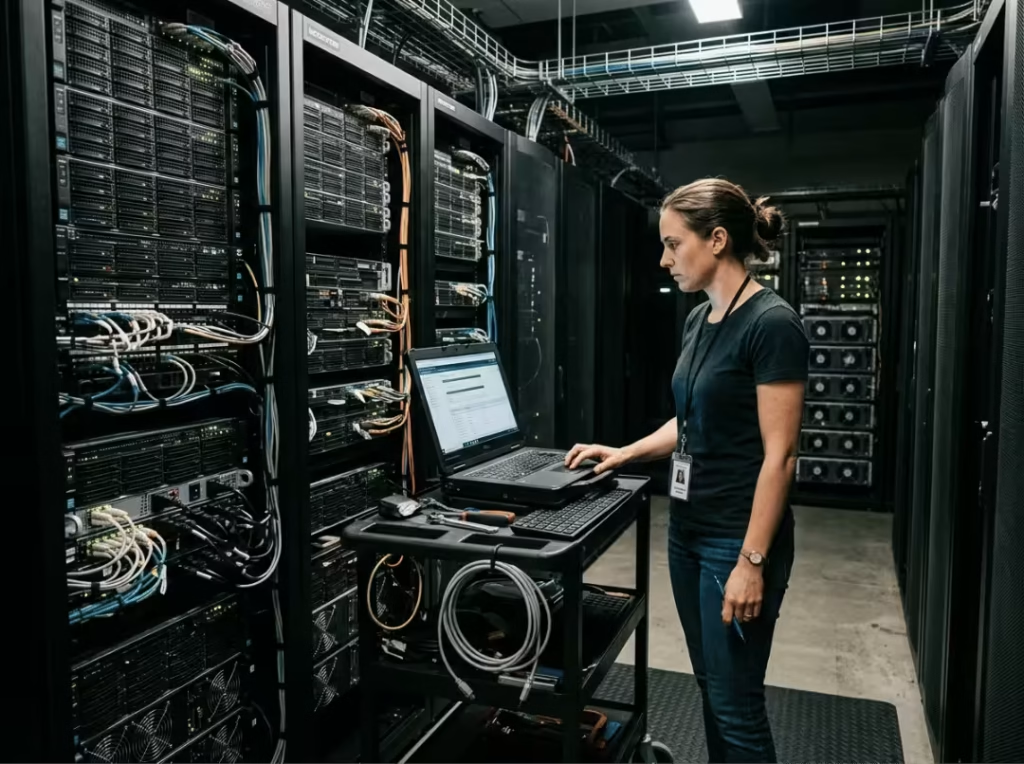
When something breaks at 3 a.m., the emergency console needs to be crisp and dependable—not blurry, stretched, or shifted off-center. The wrong scaling mode can distort remote console output, making text harder to read and problems harder to diagnose. A clean, predictable display chain is part of solid operational hygiene. When you’re under pressure, simplicity is a feature.
When to Use GPU Scaling vs Display Scaling
This is where the actual work happens. The right choice depends on what the server does, who controls the display experience, and what you can least afford to lose. Here are the scenarios worth thinking through carefully.
Compute-heavy servers: prefer display scaling
AI training nodes, inference servers, video encoding boxes, and render nodes share one characteristic—the GPU is the primary throughput asset. On these systems, display scaling is the right default. Leaving scaling to the monitor (or simply outputting at native resolution and skipping scaling altogether) keeps every GPU cycle available for the job queue. The console image quality on a training server is almost never worth the cost of borrowing compute from an active workload. If the machine is accessed through a remote or out-of-band console anyway, GPU-side scaling adds overhead with little upside.
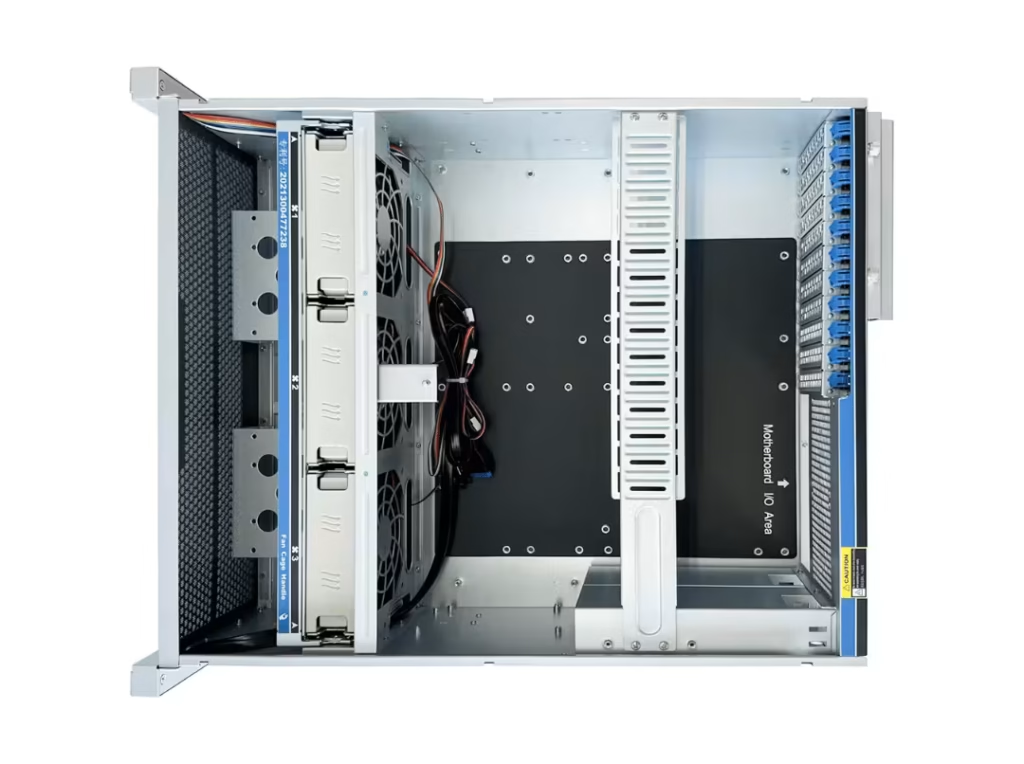
If you’re building out this kind of compute-heavy infrastructure, the chassis you choose matters as much as the GPU configuration—a 4U GPU server case or a liquid-cooled GPU server case designed for high thermal loads will give your GPUs the sustained operating environment they need, regardless of how you configure your display output.
Remote workstations: GPU scaling makes sense when image consistency matters
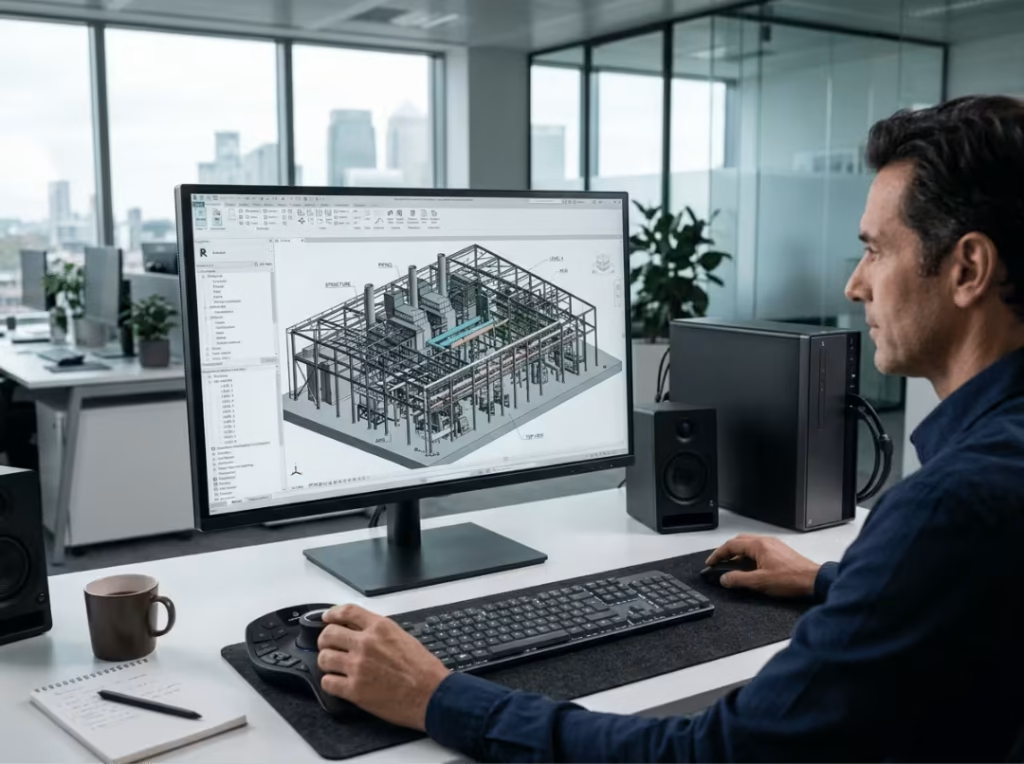
Servers used as remote workstations—for CAD, media review, 3D visualization, and color-critical production—flip the priorities entirely. Image fidelity is part of the deliverable, and users connect from displays with widely varying native resolutions and scaler quality. GPU scaling gives you one consistent engine, so the output looks the same regardless of what panel is at the other end. If your users are judging geometry, color accuracy, or fine spatial detail, the GPU’s controlled scaling is worth the overhead—assuming you have headroom to spare.
VDI and GPU passthrough: behavior depends on the stack, so test first
Virtualized environments are the hardest to predict. In VDI deployments and GPU passthrough VMs, scaling behavior is shaped by the hypervisor, the virtual display driver, and the guest OS—not just the physical GPU. VMware, Proxmox, and Citrix each handle virtual display paths differently, and a virtual display driver can intercept or override scaling in ways that bare-metal setups never encounter. Passthrough adds another layer: the guest sees the physical GPU directly, but the display path may still route through virtual components depending on the configuration. Don’t standardize a scaling setting across a virtualized fleet based on desktop assumptions. Test actual behavior in your specific hypervisor and guest combination before you commit.
Headless or emergency-console servers: default to simplicity
For machines you reach only through IPMI, iDRAC, iLO, or a KVM, keep the display chain as simple as possible. Disable GPU scaling, let the console output its native signal, and remove variables you’d otherwise have to debug mid-incident. Out-of-band consoles have their own rendering behavior, and adding GPU-side scaling adds complexity without any operational benefit. The goal is a console that works identically every time you connect.
Poor monitor scaler: GPU scaling becomes a practical fix
Sometimes the decision is made for you. If the attached monitor or console has a weak internal scaler—producing soft text, ringing on sharp edges, or visible artifacts at non-native resolutions—GPU scaling is the practical fix regardless of server type. Moving the scaling work to the GPU restores a usable, clean image. This is the one case where GPU scaling is warranted even on a compute-focused system, though it should be a deliberate exception for that specific display, not a blanket fleet-wide setting.
The short version: compute-first workloads point to display scaling; image-consistency-first workloads point to GPU scaling; anything involving virtualization or a remote display chain requires real testing before you standardize anything.
A Practical Decision Framework
Work through these four steps in sequence. Each one narrows the decision before you touch a single driver setting.
Step 1 — Identify the server’s primary role
Classify the machine: compute node, admin or utility server, remote workstation, or VDI host. The role sets the baseline priority. A training node and a CAD workstation sit at opposite ends of the spectrum, and their scaling defaults should reflect that gap.
Step 2 — Identify who actually controls the display experience
Trace the display path: a local monitor, a remote desktop session, an out-of-band console, or a VM desktop. This tells you whether GPU-side scaling even reaches the surface the user sees. If the path runs through a virtual display driver or an IPMI console, the GPU’s scaling setting may be irrelevant—or actively counterproductive.
Step 3 — Identify what you can least afford to lose
Name your scarcest resource explicitly: GPU headroom, image sharpness, latency, compatibility, or operational predictability. On a training node, it’s GPU headroom. On a color-critical workstation, it’s image sharpness. On a headless production server, it’s predictability and consistency. When steps 1 and 2 leave the decision ambiguous, this is your tiebreaker.
Step 4 — Only then decide whether to enable GPU scaling
With role, display path, and priority clear, the right choice usually surfaces on its own. Enable GPU scaling only when image consistency or a weak monitor scaler justifies the GPU cost, and only when the display path actually benefits from it. In every other case, display scaling is the resource-correct default. Making this decision last—after the analysis—stops desktop habits from bleeding into server configurations where they don’t belong.
How to Check Which Scaling Mode Is Active
Don’t assume the control panel setting reflects reality, especially across remote or virtual display paths. Verify with these three checks.
Switch to a non-native resolution and observe
Set the GPU output to a resolution the panel doesn’t natively support and watch what happens. If the image fills the screen cleanly and the monitor reports receiving its native resolution, the GPU is scaling. If the monitor reports receiving the non-native resolution and is stretching it internally, display scaling is active. This is the fastest way to identify which side of the chain owns the work.
Use a pixel-grid or sharp-edge test image
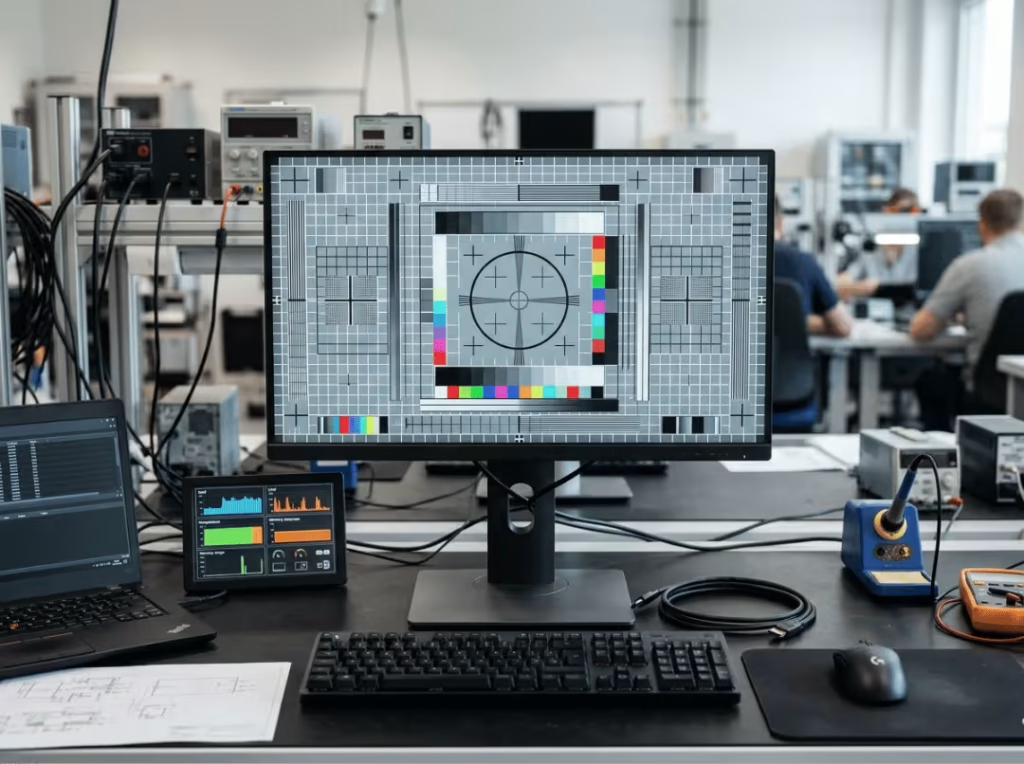
Load a fine pixel-grid or a high-contrast test pattern with sharp edges. A competent scaler keeps lines crisp and evenly weighted; a weak one introduces blur, shimmer, or uneven spacing. This tells you both who is scaling and how well they’re doing it. If the grid looks clean at a non-native resolution, whatever scaler is in the path is doing its job—useful information when you’re deciding whether the monitor’s internal scaler is trustworthy enough to rely on.
Watch GPU utilization under a real workload
Monitor GPU utilization with nvidia-smi while the desktop is idle or lightly loaded. If GPU scaling is active, you’ll see a measurable utilization baseline even with nothing running, and it will increase with display activity. Zero GPU cost on a scaled static desktop means the monitor is doing the work. Under an actual production workload, this check tells you whether scaling is quietly competing with the jobs that matter.
Common Misconceptions About Server Scaling
A few durable myths reliably push admins toward the wrong default. Here’s where each one breaks down.
“GPU scaling always gives better image quality”
It doesn’t. Image quality depends on the scaler’s quality, not on which component runs it. A modern high-end display panel can have a scaler that matches or beats the scaling engine of an older GPU. The GPU isn’t inherently superior—it’s just a different scaler with a different cost profile. Use a test image to judge quality; don’t assume.
“Display scaling is a budget workaround”
It isn’t. On a server, display scaling is frequently the resource-correct choice—not a compromise. Offloading scaling to the monitor preserves GPU cycles for the workloads the server was built to run. Calling it “budget” imports a desktop assumption that the GPU has spare capacity to give, which rarely holds on a compute node under load.
“Scaling doesn’t matter on headless servers”
It does. Headless doesn’t mean displayless. Remote consoles, IPMI and iDRAC sessions, and emergency KVM access all render an image, and the scaling configuration shapes how that image looks. A distorted or blurry emergency console is exactly the problem you can’t afford when you’re diagnosing a down system in the middle of the night. Scaling behavior on headless machines matters most precisely because you only see it when something has gone wrong.
“One scaling setting works across the whole fleet”
It doesn’t. A training node, a remote CAD workstation, a VDI host, and a headless utility server have genuinely different requirements. Standardizing a single setting across all of them guarantees the wrong answer for at least some machines. That’s the exact problem the four-step framework is designed to prevent.
Recommended Defaults by Server Scenario
Use this table as a starting point. For any virtualized role, treat it as a hypothesis until you’ve verified behavior in your actual stack.
|
Server type |
Recommended default |
Why |
|---|---|---|
|
AI / training server |
Display scaling (or native resolution, no scaling) |
Preserve every GPU cycle for the training workload; console clarity is secondary |
|
GPU render node |
Display scaling |
Rendering throughput outweighs local display fidelity in virtually every case |
|
Remote workstation (CAD, media, visualization) |
GPU scaling |
Consistent, high-quality output across varied endpoint monitors |
|
VDI host |
Test first, then standardize |
Behavior is hypervisor- and driver-dependent; assumptions will break things |
|
Admin / utility server |
Display scaling, GPU scaling disabled |
Simple, predictable display chain for remote access and emergency consoles |
For virtualized roles especially, confirm how your hypervisor and guest OS actually handle scaling before you push a standard across the fleet.
Match the Mode to the Workload, Not the Habit
The core rule is simple: choose your scaling mode based on what the server does, not on how you configured your workstation at home. For compute-first systems—training nodes, render farms, encoding boxes—display scaling is the safer default. It keeps GPU cycles where they belong. Reserve GPU scaling for cases where image consistency is a real requirement or where a weak monitor scaler leaves you no better option. And whenever a virtualized or remote display chain is involved, test the actual behavior before you commit.
Work through the four-step framework, verify with a non-native resolution test and a GPU utilization check, and document the outcome per server class. As virtualized GPUs and cloud-hosted workloads become more common, the display path will only get more abstract—making the habit of verifying rather than assuming more valuable with every passing year.
