


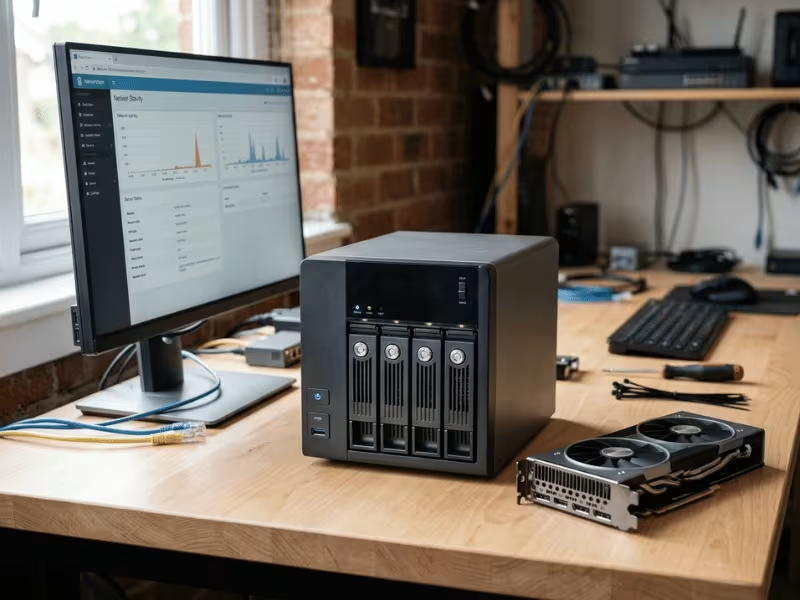
You just bought a QNAP TS-453D. Now you want a virtual machine to use a real graphics card. Maybe you picture gaming inside a Windows VM, smoother Plex or Jellyfin streams, or a home lab where you test GPU workloads.
It’s a fair question. And it comes up a lot.
Here’s the short answer: QNAP doesn’t officially support GPU passthrough on the TS-453D. The hardware itself explains why, and I’ll walk you through each reason.
But first, one point. People use the term “GPU passthrough” loosely. Sometimes they mean handing a discrete card straight to a VM. Sometimes they mean sharing the Intel integrated GPU. Sometimes they just mean hardware transcoding. These aren’t the same thing, and mixing them up causes most of the confusion.
So let’s clear it up together. I’ll show you why passthrough fails here, what the box does well, and which alternatives fit your goal.
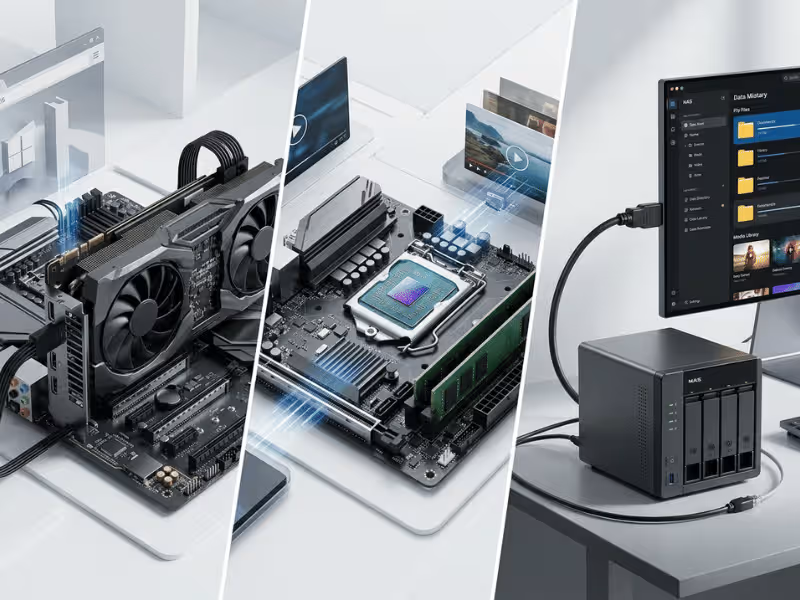
The Short Answer: The TS-453D Isn’t Built for GPU Passthrough
Let me save you some time. I don’t recommend the TS-453D as a GPU passthrough platform. If your plan is to hand a real graphics card to a virtual machine, this box will fight you every step of the way.
Four things stand in your path:
- No official support. QNAP doesn’t list the TS-453D among the models that support GPU passthrough. That alone tells you a lot.
- A weak PCIe slot. The single Gen 2 x2 slot can’t feed a modern graphics card properly.
- Physical and power limits. The chassis takes low-profile cards only, and the slot supplies all the power. There’s no extra connector.
- A locked-in integrated GPU. You can’t carve up the Intel UHD 600 and assign it to VMs the way people often assume.
I’ll break down each reason later so you know exactly where the wall sits.
One thing worth saying now: if you just want smooth Plex or Jellyfin transcoding, that’s a completely different job. The TS-453D handles it well through Intel Quick Sync. Don’t write the box off. It’s simply not a passthrough machine.
Three Things People Keep Mixing Up
Before we go further, let’s sort out some vocabulary. Most of the confusion comes from three features that sound similar but do very different jobs. Once you see the difference, the rest of this article clicks into place.
GPU passthrough means you take a real, discrete graphics card and hand it entirely to one virtual machine. That VM gets exclusive control. The host and every other VM lose access while it’s assigned. This is what people picture when they imagine gaming or heavy 3D work inside a VM.
Intel Quick Sync, or hardware transcoding, is something else. Here, the host or a container taps the integrated GPU to encode and decode video. Plex and Jellyfin lean on this to convert streams on the fly. No VM owns the graphics chip. The NAS simply uses its built-in engine to speed up media tasks.
HDMI output trips up the most people. Yes, the TS-453D has an HDMI port. Yes, it pushes a picture to a screen. But that signal comes from the host, not from a virtual machine. Plug in a monitor and you’ll see the NAS interface or a media app. It does not mean a VM suddenly gained a graphics card.
So keep these three straight:
- Passthrough = one VM, one dedicated GPU.
- Quick Sync = the host speeds up video, shared by everyone.
- HDMI = a display for the NAS itself.
When someone online says the TS-453D “handles graphics,” ask which of these three they mean. Nine times out of ten, they’re talking about Quick Sync.
Why People Search for This
When someone types this question into Google, they’re rarely after theory. They have a specific goal. In my experience helping people plan setups, the request almost always maps to one of four things.
A graphical VM with a real display. Some folks want a full Windows or Linux desktop on the NAS, smooth enough for everyday apps. They picture plugging in a monitor and using it like a small PC.
Gaming or GPU-accelerated work. Others aim higher. They want to game inside a VM, run 3D rendering, test CUDA code, or dabble in machine learning. All of this leans hard on a real graphics card.
Media transcoding for Plex or Jellyfin. This is the big one. Many people just want their media server to convert video without stuttering. They think passthrough is the answer. Usually it isn’t.
A combined storage and compute home lab. The last group wants one box that stores files and runs workloads at the same time.
Each of these goals leads somewhere different on the TS-453D. Some it handles well. Some it can’t touch. I’ll cover what fits, what doesn’t, and where to go next for each one.
Why the TS-453D Can’t Deliver Real GPU Passthrough
Now let’s get to the heart of it. There are four separate walls here, and each one alone would be enough to stop you. Together, they close the door completely.
QNAP Never Put This Model on the List
QNAP keeps a strict list of units that support GPU passthrough. The TS-453D isn’t on it.
That’s not a small detail. It means QNAP never validated, tested, or built driver support for handing a graphics card to a VM on this box.
You might find a forum post where someone claims they got something working. But “it booted once” isn’t the same as a stable, repeatable setup. Without official backing, you’re on your own for drivers, firmware quirks, and every update that could break things. When a QTS update lands, a fragile setup falls apart, and there’s no support path to fix it. For anything long-term, that’s a dealbreaker.
The PCIe Slot Is a Genuine Bottleneck
The TS-453D gives you one PCIe slot: Gen 2 x2. That spec matters more than most people realize.
A Gen 2 x2 link tops out near 1 GB/s of usable bandwidth. Modern graphics cards expect Gen 3 or Gen 4 across eight or sixteen lanes. You’re feeding a thirsty card through a straw.
So what happens in practice? The driver may refuse to initialize the card at all. If it does load, the card starves for data. Any real workload stutters, hitches, or crashes under load. Frame rates tank. Rendering jobs stall.
Even for light graphics work, the link width caps your ceiling hard. This isn’t a “slightly slower” situation. It’s a fundamental mismatch between what the slot delivers and what a GPU needs to stay stable.
The Chassis and Power Won’t Cooperate
Even setting bandwidth aside, the physical build fights you.
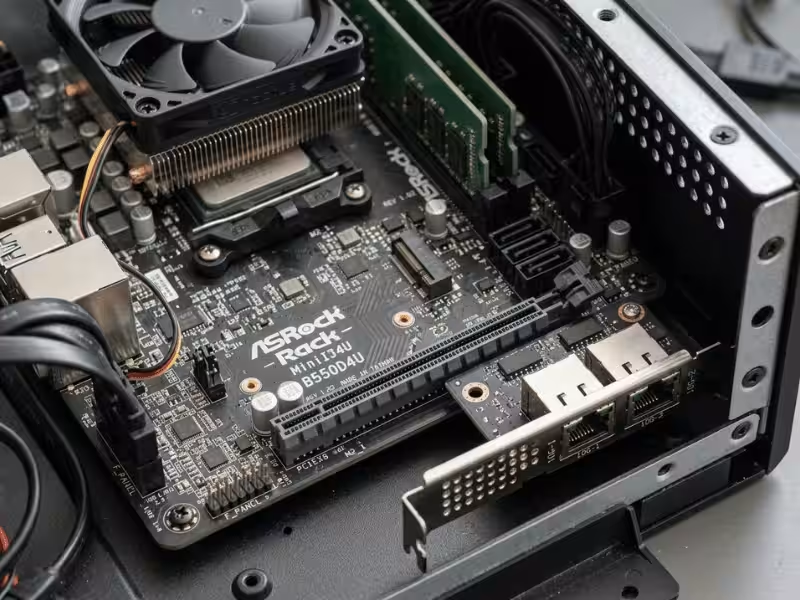
The TS-453D takes low-profile cards only. That single limit knocks out nearly every gaming and workstation GPU on the market. Full-height cards simply won’t fit.
Then there’s power. The chassis has no auxiliary PCIe power connector. None. So the card draws everything through the slot itself, which caps out around 25 watts on a Gen 2 x2 link.
Think about what that means. Most capable GPUs pull well over 75 watts, and many need 150 watts or more through dedicated cables you don’t have here. Your card pool shrinks to a tiny handful of low-profile, slot-powered models, and even those risk instability under sustained load.
The Integrated GPU Won’t Split for Your VMs
Here’s where I see the most confusion. The J4125 supports Intel VT-d. It has integrated UHD 600 graphics. People see those two facts and assume passthrough must be possible.
It doesn’t work that way.
VT-d existing on the chip doesn’t mean QNAP opens that path in its software. QNAP decides what Virtualization Station can reach, and on this model, the menu stays empty. There’s no assignable GPU waiting for you.
The UHD 600 also can’t be carved up and shared across VMs the way some hope. QTS keeps the integrated GPU for its own jobs: transcoding, HDMI output, and media apps.
So the iGPU is genuinely useful here, just not for VM graphics. Its real strength is Quick Sync, which powers smooth Plex and Jellyfin transcoding on the host. Point it at that job, and it shines. Try to hand it to a VM, and you’ll hit a wall QNAP built on purpose.
Why People Think It Works (And Why They’re Wrong)
Search around long enough and you’ll find bold claims. “My TS-453D handles the graphics fine.” “The card shows up, so it must work.” I get why these posts spread. But they usually rest on one of four misreadings.
The first is the big one. Someone runs smooth Plex or Jellyfin streams and calls it GPU passthrough. It isn’t. That’s Quick Sync doing hardware transcoding on the host. Useful, yes. But no VM ever touches the graphics chip.
The second sounds convincing. A card slots in, and QTS lists it as a PCIe device. People take that as proof. Detection isn’t the same as assignment. Seeing hardware means the system noticed it, not that a VM can grab it and run it reliably.
The third catches sharp readers. They check the spec sheet, spot Intel VT-d on the J4125, and assume the door is open. VT-d living on the chip is only half the story. QNAP decides whether Virtualization Station exposes that path. On this box, it doesn’t.
The fourth is the simplest trap. There’s an HDMI port, so surely a VM can output to a screen. That port belongs to the host. Plug in a monitor and you’ll see QTS or a media app, never a VM desktop driven by a real card.
So when a thread promises success, read closely. Ask what the person actually did. Nine times out of ten, they proved something the TS-453D genuinely does well, then labeled it with the wrong name.
What the TS-453D Actually Does Well
Enough about what this box can’t do. The TS-453D is a strong little machine when you point it at the right jobs. Let me show you where it earns its keep.
A Media Server That Just Works
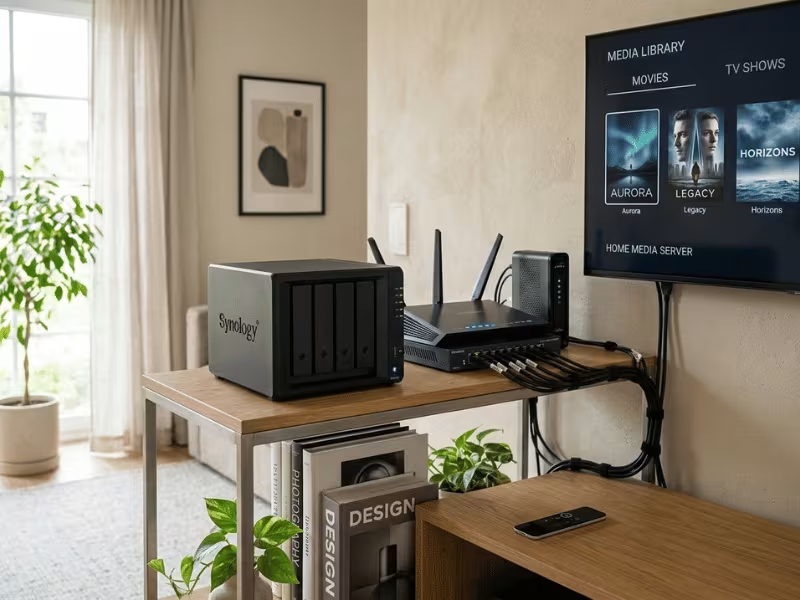
This is the TS-453D’s home turf. Run Plex, Jellyfin, or QNAP’s own media apps, and the integrated UHD 600 handles video through Quick Sync.
That means smooth transcoding without a discrete card. The box can juggle several 1080p streams at once and even push some 4K work, all on hardware you already own.
Notice the key point: none of this needs GPU passthrough. People chase passthrough for media, then discover the feature they wanted was Quick Sync all along. Set up hardware transcoding in your media app, and you’re done.
Lightweight VMs That Behave
Virtualization Station still has plenty to offer. You just have to accept CPU-only graphics, which is fine for the workloads that suit this box.
Think of headless services that run quietly in the background:
- A Pi-hole or DNS server for your whole network
- Monitoring stacks like Uptime Kuma or a small Grafana setup
- A lightweight web server or a download client
- A small Windows or Linux box for admin tasks and testing
You reach these VMs through a VNC or SPICE console, or over the network. No monitor, no graphics card, no problem. On a quad-core chip with 8GB of RAM, keep the VM count modest and give each one only the memory it needs.
Containers Before Full VMs
Here’s the advice I give most often: reach for Container Station before you spin up a VM.
Containers share the host kernel, so they skip the heavy overhead a full VM carries. On a low-power NAS like this, that difference is huge. You get more services running in the same memory footprint, and they start in seconds.
Most self-hosted apps don’t need a VM at all. A reverse proxy, a Nextcloud instance, a Git server, a home automation hub, plenty of dashboards, all run happily as containers. My rule of thumb: use a container unless the app truly demands a full operating system.
Pick the Path That Fits Your Goal
By now you know where the TS-453D shines and where it stalls. So let’s turn that into a clear choice. Match your goal to one of these four scenarios.
You Want Plex or Jellyfin Transcoding
Good news: you’re already set. Keep the TS-453D and lean on Quick Sync for hardware transcoding. No card, no passthrough, no headache.
Spend your energy on things that actually help. Max out the RAM so your media app and metadata scans breathe easier. Put your library on healthy drives, and store cache and metadata on the fastest volume you have. Then flip on hardware transcoding inside Plex or Jellyfin and confirm it’s kicking in. Do that, and this box handles a busy household without breaking a sweat.
You Want Gaming, Rendering, CUDA, or AI in a VM
Stop here. I mean it kindly. The TS-453D will never run these well, and chasing it burns time you won’t get back.
These workloads demand a real, dedicated GPU with proper bandwidth and power. This box gives you neither. So change the platform instead of fighting the hardware. Move that work to a machine built for it: a desktop with a discrete card, or a purpose-built GPU server case that gives a card the room and airflow it actually needs. Let the TS-453D go back to being your storage layer.
You’re Building a Home Lab
Split the roles, and everything falls into place.
Keep the TS-453D doing what it does best. Run your storage, containers, and light CPU-only VMs right here. Pi-hole, DNS, monitoring, a small web server: all happy on this box.
Then hand the GPU tasks to a second machine. Point that box at the NAS for shared storage over the network, and let it handle anything that needs real graphics muscle. You get a tidy setup where each machine plays to its strength, and you avoid cooking a single unit with heat and noise. One quiet storage brain, one compute workhorse.
You Want the Cheapest Setup That Actually Works
Here’s the move that saves the most money: leave the NAS alone.
Don’t sell the TS-453D or trade up to a pricier QNAP just for GPU work. Keep it as your storage and container hub. Then add a cheap compute box beside it. A used desktop with a mid-range card often costs less than a NAS upgrade, and it gives you far more power. A small ITX case works too if your GPU needs come in short bursts rather than running around the clock. Connect either one to the NAS for files, and you’ve got the best of both without overspending.
Better Alternatives If You Really Need GPU Passthrough
So you’ve decided the TS-453D can’t do the job, and you truly need a GPU inside a VM. Good. Now let’s find the right way to get there. You have four solid paths, and the best one depends on your budget and how you like to work.
Move up to a QNAP that supports it. If you want to stay inside the QNAP world, pick a model built for passthrough from the start. Look for units with a full-height PCIe slot, a wider and faster link, and proper auxiliary power. QNAP publishes a compatibility list, and it changes with firmware, so check it live before you buy. Match the card to the list, not the other way around.
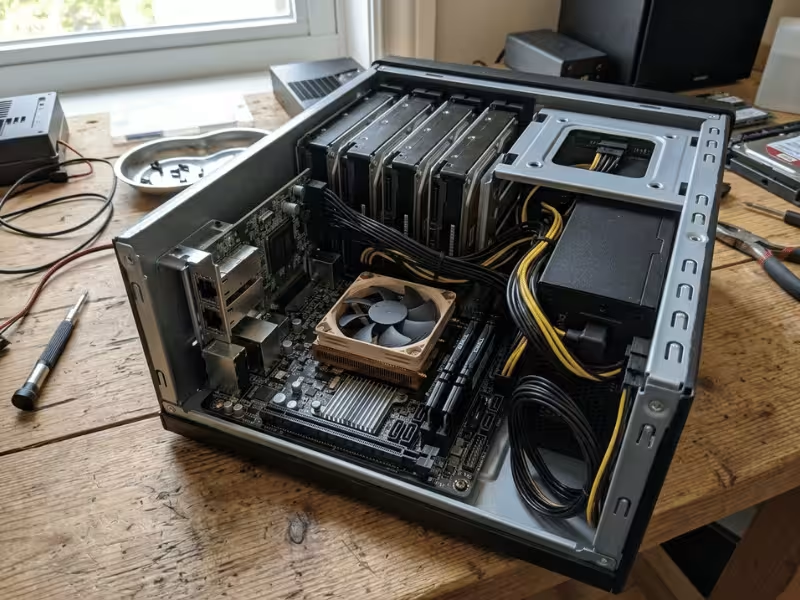
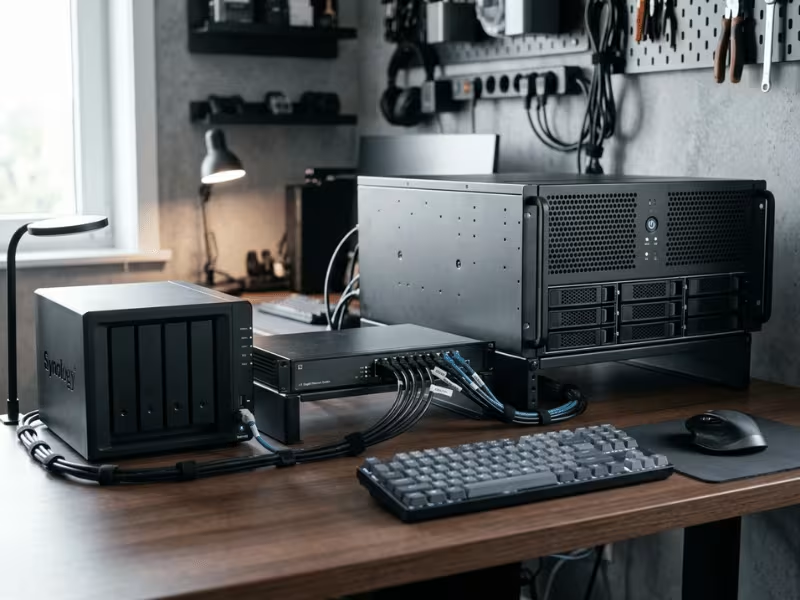
Build a dedicated hypervisor box. For most people chasing serious GPU work, this is the smart move. Grab a used desktop and run Proxmox or Unraid on it. Both handle passthrough far more openly than a NAS ever will, and you control every setting. A mid-range card in a proper chassis gives you real bandwidth and power headroom. A 4U GPU server case is a great fit here, since it takes full-height cards, feeds them proper power, and keeps them cool under long runs. You’ll spend less than a high-end NAS upgrade and get more muscle for it.
Let the NAS store, let another box compute. Here’s the principle I lean on most: don’t force one machine to do everything. Keep the TS-453D as your storage layer, then stand up a separate compute node for the heavy lifting. Point that node at the NAS for shared files over the network. This split also spreads out heat and noise, so neither machine runs hot around the clock.
Add a mini PC or small desktop. If your GPU needs come in bursts rather than running non-stop, you don’t need a big rig. A compact desktop or a mini PC with a capable card handles occasional gaming, rendering, or a bit of AI testing just fine. Wake it when you need it, and let it pull files from the NAS the rest of the time.
Whichever path you pick, the pattern stays the same. Storage lives on the TS-453D. GPU work lives somewhere built for it. Choose based on how often you’ll actually use the GPU. Steady, heavy use points toward a proper hypervisor box or a supported QNAP. Light, occasional use points toward a mini PC beside the NAS.
FAQ
Can the QNAP TS-453D do GPU passthrough in Virtualization Station?
No. QNAP doesn’t list the TS-453D among the models that support GPU passthrough, and Virtualization Station won’t show an assignable GPU on this box. The menu stays empty because QNAP never opened that path here. Even if you slot a card in, there’s no supported way to hand it to a VM.
Does the TS-453D support Intel Quick Sync for Plex or Jellyfin?
Yes, and this is where the box really earns its keep. The J4125’s integrated UHD 600 handles hardware transcoding through Quick Sync. Turn on hardware transcoding inside Plex or Jellyfin, and the NAS converts streams on the fly. It manages several 1080p streams at once and some 4K work too. No discrete card needed.
Can I install a low-profile graphics card in the TS-453D?
Technically you can fit one, but it won’t help. The single PCIe Gen 2 x2 slot chokes any modern card, and the chassis takes low-profile models only. Worse, there’s no auxiliary power connector, so the card draws everything through the slot, which caps around 25 watts. That combination rules out nearly every useful GPU. Even a card that fits and detects still can’t be passed to a VM.
What is the difference between GPU passthrough and hardware transcoding?
They solve different problems. GPU passthrough hands a real card entirely to one virtual machine, and everything else loses access. People want this for gaming, 3D rendering, or CUDA work. Hardware transcoding, like Quick Sync, lets the host use its integrated GPU to speed up video encoding and decoding. No VM owns the chip. Most people who ask about passthrough for Plex actually want transcoding.
Is the TS-453D good for running virtual machines without a GPU?
Yes, within reason. Virtualization Station runs CPU-only VMs just fine, and plenty of useful workloads never touch a graphics card. A Pi-hole, a DNS server, a small web server, or a lightweight admin box all fit comfortably. Just keep the count modest and give each VM only the memory it needs.
Should I upgrade RAM for virtualization on the TS-453D?
If you plan to run VMs or several containers, yes. RAM is the tightest limit here. QNAP lists 8GB as the official maximum, and that fills up fast once you split it between the host, containers, and a couple of VMs. Many users report 16GB posting and running, though QNAP doesn’t officially support it. Test stability before you trust it with anything important.
What is a better alternative if I need GPU acceleration in a VM?
Move that work off the NAS. Keep the TS-453D for storage and containers, then add a separate box for GPU tasks. A used desktop running Proxmox or Unraid with a mid-range card handles passthrough far better than any small NAS, and it often costs less than upgrading to a GPU-capable QNAP. Match the choice to how often you’ll actually use the card.
The Bottom Line
Let’s leave it clean. The TS-453D isn’t a GPU passthrough machine, and no amount of tinkering changes that. QNAP never supported it here. The Gen 2 x2 slot can’t feed a card. The chassis and slot power won’t cooperate. And the integrated GPU stays locked to the host.
But don’t sell it short. This box shines at what a NAS should do. It transcodes media beautifully through Quick Sync. It runs containers with ease. It handles lightweight, CPU-only VMs without complaint.
So match the tool to the job. If you need real GPU muscle inside a VM, change the hardware. Build a proper compute box, or move to a QNAP that supports passthrough. Then let the TS-453D go back to storage, media, and small services. Point it at the right work, and it’ll serve you well for years.
