


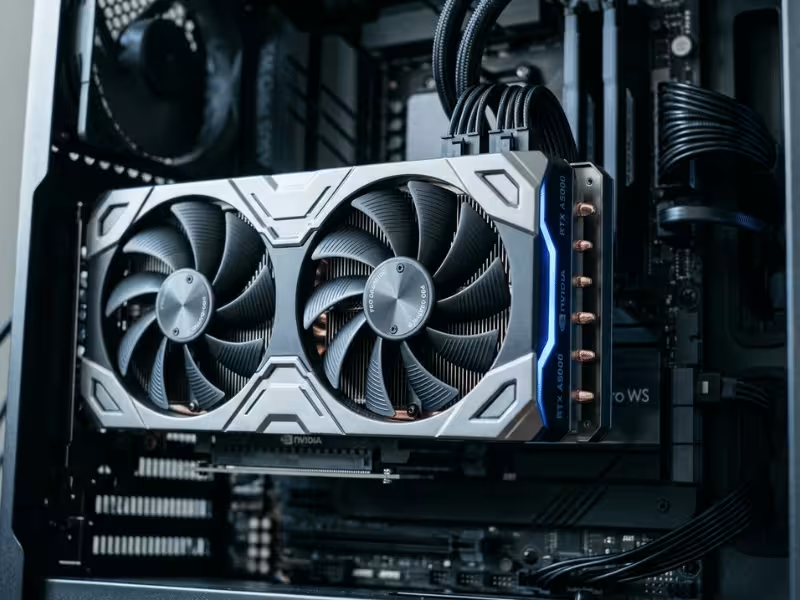
Many SolidWorks users think they need the strongest gaming GPU they can afford. That is where many bad purchases begin.
SolidWorks does use the graphics card. But it does not use it the way a game does. A bigger GPU can make the viewport feel smoother. It can also help with RealView and larger assemblies. But it will not fix slow rebuilds, mate solves, or weak CPU performance.
I often tell buyers to slow down before they choose a card. First, look at your real workload. Then decide if you need certified drivers, how much VRAM you need, and whether more of your budget should go to the CPU and RAM instead.
This guide follows that order, so you can buy the right card without wasting money.
Why SolidWorks Breaks the Usual GPU Buying Rules
Here’s the truth that trips up most first-time buyers: the fastest gaming card on the shelf is not automatically the best card for SolidWorks. The software plays by different rules, and once you see them, your whole shopping approach changes.
The CPU Does the Heavy Lifting
SolidWorks builds your model on the CPU, not the GPU.
Every time you rebuild a part, solve a mate, or update a large assembly, the processor runs that math. Your graphics card sits on the sidelines for most of it.
So when a rebuild crawls, a bigger GPU won’t rescue you. A faster CPU with strong single-core speed will. I’ve watched people drop thousands on a flagship card, then wonder why their rebuilds feel exactly the same. Now you know why.
What the GPU Actually Handles
Your graphics card owns the viewport.
It draws every frame as you rotate, pan, and zoom. It powers shaded views, RealView, shadows, and ambient occlusion. When you spin a big assembly and it stutters, that’s the GPU talking.
So the card matters, but in a narrow lane: how smooth and clean the model looks while you work. That’s it.
Why Gaming Logic Leads You Astray
Games and SolidWorks ask completely different things from a card.
A game pushes high frame rates through DirectX, with textures and effects tuned for speed. SolidWorks leans on OpenGL and cares about drawing clean, accurate geometry without glitches.
A card can dominate in games and still stumble in a CAD viewport. The reverse happens too. A modest workstation card often feels steadier in SolidWorks than a pricey gaming GPU, because it’s tuned and tested for exactly this job.
That gap between OpenGL stability and raw gaming muscle explains most regretful purchases I see.
What the Graphics Card Actually Does in SolidWorks
Once you accept that SolidWorks splits the work between the CPU and GPU, the next question is simple: what exactly is your card doing while you model? Knowing this tells you when a GPU upgrade pays off and when it’s wasted money.
It Draws Everything You See on Screen
Your graphics card lives in the viewport.
Every time you rotate, pan, or zoom, the card redraws the whole scene, frame after frame. Shaded views, edges, and textures all come from the GPU. When a big assembly stutters as you spin it, the card is struggling to keep up.
So a stronger GPU buys you smoother movement and cleaner shaded display. That’s a real, daily improvement if you work with heavy models.

Visual Effects Lean Hard on the Card
RealView, ambient occlusion, and shadows are where cheap cards start to sweat.
These are shader-heavy features. They ask the GPU to calculate reflections, soft shadows, and surface detail in real time. Turn them all on with a weak card, and the viewport slows to a crawl.
A better card handles these effects without breaking a sweat. If you rely on RealView to sell a design or review surfaces, this is worth paying for.
Rendering: Know Which Tool Uses What
Rendering trips people up, because the two built-in tools work differently.
SOLIDWORKS Visualize uses GPU ray tracing on supported cards. Here, a stronger GPU cuts render times directly.
PhotoView 360 renders on the CPU. A bigger graphics card barely touches those times. So if PhotoView is your main renderer, spend on cores, not on the card.
What the GPU Will Not Speed Up
This is the part that saves you money. Your graphics card does nothing for:
- Rebuilds — the CPU runs that math
- Mate solves — again, CPU work
- Simulation and Flow solvers — these run on CPU cores
- File open and save — that’s storage and CPU
If any of these are your daily pain, a GPU upgrade won’t help. Look at your CPU, RAM, and NVMe drive instead.
So a new card genuinely helps when your viewport lags, RealView drags, or Visualize renders feel slow. It won’t help when rebuilds crawl or simulations drag on. Match the upgrade to the symptom, and you’ll never overpay for the wrong part.
Start by Defining Your Real SolidWorks Workload
Before you look at a single card, answer one question: what do you actually build in SolidWorks? Your honest answer decides how much you should spend and where. Most buyers skip this step and pay for it later.
Find yourself in one of these four groups.
You’re Learning or Modeling Simple Parts
You open single parts, small assemblies, and basic drawings. Maybe you’re a student or new to the software.
Your needs are light. Almost any modern card with 4 GB of VRAM keeps the viewport smooth here. Certification barely matters, and RealView runs fine on modest hardware.
Put your money elsewhere. A faster CPU and 16 to 32 GB of RAM will serve you better than a bigger GPU.
You Do Professional Part and Assembly Work
You design real parts daily. Your assemblies run from a few dozen to a few hundred components. Drawings, mates, and revisions fill your week.
Now stability starts to matter. You want a card that won’t glitch or drop RealView mid-review. Certified drivers earn their keep here, and 8 GB of VRAM gives you room to grow.
This is the sweet spot where a mid-range certified card pays off without overspending.
You Wrestle With Large Assemblies and Heavy Drawings
You load assemblies in the thousands of parts. Your drawings carry hundreds of dimensions and dense views.
Here the card works hardest. VRAM capacity matters more than raw speed, because the tessellated mesh fills memory fast. Push past 8 GB, aim for 12 GB or more, and lean toward certified hardware. Uncertified drivers tend to flicker and crash exactly when your models get this big.
If this is you, don’t cut corners on VRAM. You’ll hit the ceiling within months.
You Mix CAD With Rendering or Other Tools
You model in SolidWorks, then render in Visualize, KeyShot, or Blender. Maybe you run simulation too.
Your card now serves two masters. Visualize and many third-party renderers use GPU ray tracing, so a stronger card cuts render times directly. That justifies stepping up a tier and adding VRAM. Heavy multi-GPU rendering setups often move into a dedicated GPU server case to keep several cards cool and stable under long render loads.
Check each rendering tool’s own GPU list before you commit. A card that flies in one renderer may lag in another.
Why This Matters Before You Shop
Pin down your group first, and the rest of this guide reads like a map instead of a maze.
A student and a large-assembly engineer need completely different cards. Buy for the work you do most days, not the biggest model you’ve ever seen or the render job you run twice a year.
Certified Drivers Matter More Than Most Buyers Expect
You picked the right card. Now comes the part most buyers skip, and it causes more headaches than the hardware ever does: the driver.
SolidWorks doesn’t just want a strong GPU. It wants one running a driver that Dassault has actually tested against your version of the software.
Why Certification Is More Than a Checkbox
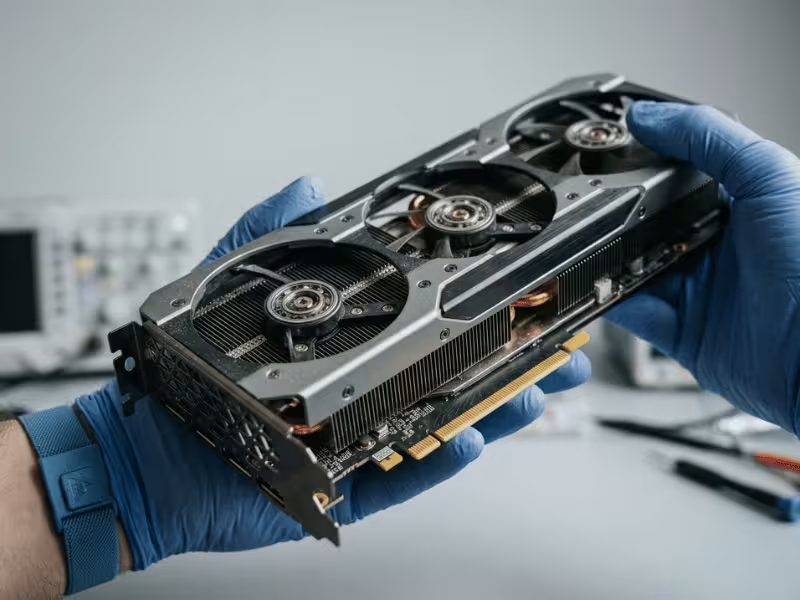
Both NVIDIA and AMD publish special driver branches, tested against specific SolidWorks releases. That’s what ISV certification means.
A certified driver has proven it draws SolidWorks geometry correctly, holds RealView steady, and survives long sessions without falling over. An uncertified one hasn’t. It might work fine. It might also break in ways that waste your afternoon.
Here’s the part people underestimate: a mid-tier certified card often runs more reliably than a flagship gaming card with no certification. Stability beats raw muscle in a CAD viewport, every time.
What Uncertified Cards Do to Your Day
When certification is missing, the symptoms are sneaky. They rarely announce themselves as driver problems. Watch for:
- Flickering faces that blink as you rotate the model
- Phantom lines and missing edges that shouldn’t be there
- RealView refusing to turn on, or switching itself off
- Sudden crashes when you load a heavy assembly
I’ve seen people replace an entire card chasing these bugs, when the real fix was a certified driver all along. Worse, if you open a support ticket on uncertified hardware, the first reply is usually a polite request to switch cards. You lose time either way.
Check the List Before You Buy
Don’t guess. Dassault keeps a hardware certification page for every SolidWorks release. Do this before you spend a dollar:
- Open the SolidWorks certified graphics card page.
- Select your exact version and service pack.
- Find your card, then note the certified driver version listed beside it.
Match the brand, the model, and the version you actually run. A card certified for one release isn’t automatically certified for the next.
The Driver Version Matters as Much as the Card
This is where good buyers still stumble. They install a certified card, then grab the newest driver from the manufacturer’s site. That newest driver is often the wrong one.
Certification points to a specific driver branch, not just “the latest.” Install a newer version and you can walk straight back into the glitches you were trying to avoid. So treat the driver as part of the purchase, not an afterthought.
- Install the exact version Dassault lists for your release.
- Don’t update mid-project unless you’re fixing a known bug.
- Keep a copy of your known-good driver installer, so you can roll back fast.
Certification status also shifts with each service pack. A card can gain support, or quietly lose it, as you update SolidWorks. Get the card, the driver, and the version aligned, and most of the crashes people blame on hardware simply never happen.
Workstation Cards vs Consumer Cards: Which One Makes Sense for You?
This is the fork in the road where most buyers freeze. The honest answer isn’t “always buy workstation” or “gaming cards are fine.” It depends entirely on what your day looks like and what a crash costs you.
Let me walk you through the trade-off, then point each type of user to the right side.
When a Workstation Card Earns Its Price
Workstation cards charge a premium, and sometimes that premium is worth every cent.
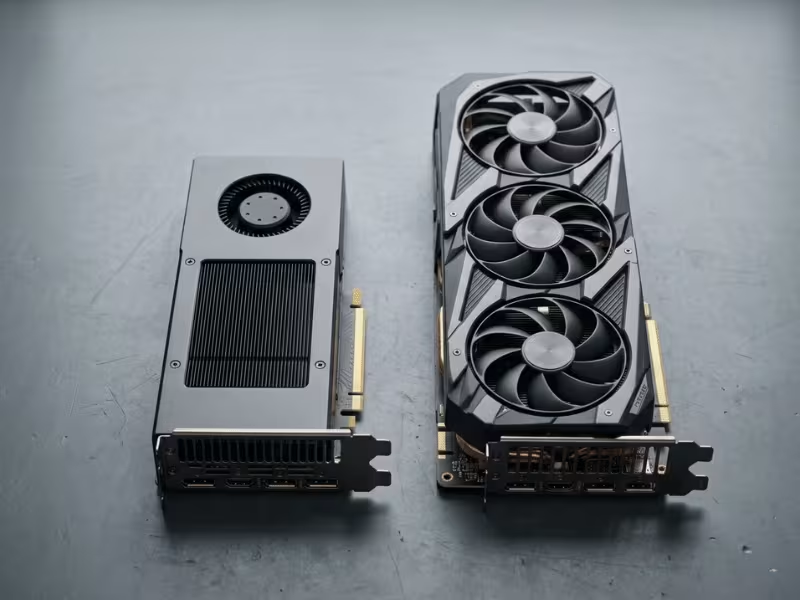
You’re paying for certified drivers, ECC memory, and tuning built for long CAD sessions. These cards trade peak frame rate for steadiness. Clocks run a little lower, but the viewport holds together for hours without glitching. Pay for one when:
- You load large assemblies daily, often in the thousands of parts.
- Downtime hurts. A crash mid-deadline costs you real money.
- Your drawings carry hundreds of dimensions and dense views.
- You need RealView to behave every single time, not most of the time.
If your income depends on SolidWorks staying stable, a workstation card is cheap insurance.
When a Consumer Card Is Genuinely Enough
Plenty of people run SolidWorks on gaming cards without drama. Don’t let anyone shame you out of it if your situation fits. A consumer card makes sense when:
- You build small parts and modest assemblies.
- You’re a student or hobbyist, not chained to paid deadlines.
- You game on the same machine and want that performance too.
- You can accept a small risk in exchange for a lot more raw power per dollar.
The catch is real, though. Consumer cards lack official certification. RealView has historically fought you on uncertified hardware, and support tickets often end with “try a certified card.” If you can live with that, the savings are substantial.
NVIDIA: RTX A-Series / RTX Pro vs GeForce
Here’s how I steer NVIDIA-leaning buyers.
The RTX A-Series and newer RTX Pro cards (think A2000, A4000, A5000) carry ISV certification for SolidWorks. They sip power, fit tidy professional builds, and just work. If stability is the goal, start here.
The GeForce line (RTX 4060, 4070, and up) gives you far more raw performance for the money. No certification, but strong viewport speed and excellent gaming headroom.
Pick the A-Series when your work is your livelihood and large assemblies are routine. Pick GeForce when you want one machine that handles CAD and games, and you accept the minor risk that comes with uncertified drivers.
AMD: Radeon Pro vs Radeon RX
The same logic maps neatly onto AMD.
Radeon Pro cards (W6400, W6600, W6800) are the certified, professional choice. They cover the full range from entry to heavy visualization, and their price per gigabyte of VRAM often beats the NVIDIA equivalent. That matters if big assemblies keep filling your memory.
Radeon RX cards are the consumer side. Capable, cheaper per frame, but without official SolidWorks certification.
One honest caveat: community reports on AMD’s certified drivers vary more than NVIDIA’s across specific versions. If you go AMD Pro, check the exact driver notes for your release before you commit. It saves you a frustrating week.
So Which Side Are You On?
Strip away the brand loyalty and it comes down to a single question: how much does a glitch cost you?
If a flickering face or a mid-load crash means missed deadlines and lost income, buy certified. The workstation premium disappears the first time a card quietly saves your afternoon.
If you’re learning, building light, or want gaming muscle in the same box, a consumer card stretches your budget further. Match the card to your risk, not to the spec sheet. Do that, and neither camp is wrong. There’s only the right choice for how you actually work.
How Much VRAM Do You Really Need for SolidWorks?
VRAM is where a lot of buyers guess wrong. They either overspend on memory they’ll never fill, or starve a card that then chokes six months later. Let me give you clear numbers tied to real work.
4 GB: Fine for Light Work
This covers students, hobbyists, and anyone modeling single parts or small assemblies.
Open a bracket, a shaft, or a 50-part assembly, and 4 GB keeps the viewport smooth. RealView runs, drawings load, and nothing strains. Just know this is a floor, not a ceiling. Grow past simple work and you’ll feel it fast.
8 GB: The Practical Sweet Spot
If you design for a living, start here.
Eight gigabytes handles assemblies in the low thousands of parts without complaint. It gives RealView, shadows, and dense drawings room to breathe. Most professional part-and-assembly work fits comfortably inside this budget. This is the tier I point working designers to first.
12 GB and Up: For Heavy Loads
Some workloads eat memory for breakfast. Reach for 12 GB or more when you:
- Load assemblies in the many thousands of parts
- Run dual or 4K monitors, which multiply VRAM use
- Lean on complex visualization or GPU rendering
Here, capacity beats clock speed. The tessellated mesh fills memory fast, and running dry hurts more than a slower core ever would.
How to Spot VRAM Exhaustion
Your card tells you when it runs out. Learn the signs.
- A sluggish viewport that stutters as you rotate a big assembly
- Crashes right as a large assembly finishes loading
- Texture artifacts — flickering surfaces or missing detail in shaded views
Hit these regularly, and more VRAM is your fix, not a faster GPU. So size your memory to your largest routine assembly, plus a little room to grow.
Best Graphics Cards for SolidWorks by Budget
Now that you know your workload and your VRAM target, let’s put real cards against real dollars. I’ve grouped these by budget, but the price isn’t the point. The fit is.
Under $250: Certified on a Shoestring
This tier suits students, hobbyists, and solo designers who mostly build single parts and light assemblies.
Look at the NVIDIA RTX A2000 for certified reliability at low power. It slips into small builds and just behaves. On the AMD side, the Radeon Pro W6400 is the cheapest certified card with modern drivers.
Want gaming headroom too? A GeForce RTX 4060 gives you strong viewport speed if you accept uncertified drivers.
This handles single parts, drawings, and assemblies up to a few hundred components without strain. Skip this tier if large assemblies fill your week. You’ll hit the VRAM wall fast.
$250 to $700: The Working Designer’s Zone
This is where most professionals should shop.
You design daily. Your assemblies run into the low thousands of parts. You want stability without paying for capacity you’ll never touch.
The NVIDIA RTX A2000 12 GB gives you certified drivers plus enough VRAM for growing assemblies. The AMD Radeon Pro W6600 delivers balanced viewport performance and holds steady at 1440p.
If you game on the same machine, a GeForce RTX 4060 Ti 16 GB or RTX 4070 covers mixed CAD and gaming use with room to spare.
This tier stays comfortable with assemblies in the low thousands of parts at 1080p or 1440p. Don’t reach here if you only open small parts. That money serves you better in a faster CPU and more RAM.
$700 to $2,000: Serious Assemblies and Rendering
Step up when your models get heavy and downtime starts costing real money.
You load assemblies with several thousand components. You run 4K viewports. Maybe you render with GPU-accelerated tools alongside your CAD work.
The NVIDIA RTX A4000 is my default pick here. It delivers certified performance on demanding assemblies without drawing much power. Need more memory for visualization? The AMD Radeon Pro W6800 brings 32 GB to the table.
If you render outside SolidWorks in Visualize or KeyShot, a GeForce RTX 4070 Ti or RTX 4080 cuts those times sharply, as long as you accept uncertified drivers for CAD. Builds that pair a heavy card with rendering horsepower often land in a 4U GPU server case, which gives large cards the airflow and clearance they need.
This tier handles 4K viewports and assemblies with several thousand parts. Hold back if your assemblies stay in the hundreds.

$2,000 and Up: Only When the Work Demands It
This is the top shelf, and most people don’t belong here. That’s not an insult. It’s just honest math.
Buy at this level when you run the largest assemblies, juggle multiple demanding applications at once, or lose serious money every hour a workstation sits down.
The NVIDIA RTX 5000 Ada covers the biggest assemblies and multi-application workflows. When your VRAM needs push past 32 GB, the RTX 6000 Ada answers with headroom to spare. Teams standardized on AMD can reach for the Radeon Pro W7900.
This tier earns its price only when downtime costs more than the card itself, or when you run simulation, rendering, and CAD together on one machine.
Here’s my blunt advice: don’t buy at this level for bragging rights. A designer who models parts and mid-size assemblies will see almost no daily benefit over a card a third of the price.
One Rule Across Every Tier
Notice a pattern in all four brackets. The right card tracks your largest routine assembly, not the most complex model you’ve ever opened or the render job you run twice a year.
Buy for the work you do most weeks. Then send whatever budget remains toward your CPU and RAM, because those drive the rebuilds and mate solves you feel on every single click.
The Most Common Buying Mistakes
I’ve watched smart people waste real money on SolidWorks builds. The mistakes repeat, and they’re easy to avoid once you see them.
Buying a gaming flagship and expecting workstation-level stability.
A top gaming card is fast, no question. But speed isn’t stability. Drop one into a CAD workstation and you can still hit flickering faces, dropped RealView, and crashes mid-load. Those bugs trace back to missing certification, not weak hardware.
Upgrading the GPU while an aging CPU stays put.
This one stings the most. You spend big on a new card, boot up, and your rebuilds feel exactly the same. Of course they do. The CPU runs your rebuilds and mate solves, and a tired processor caps the whole system. Fix the bottleneck you actually have.
Choosing too little VRAM to save a few dollars.
Cheap today, painful later. That 4 GB card looks like a bargain until your assemblies grow. Then the viewport stutters, big loads crash, and shaded views glitch. Six months in, you’re shopping again. Buy the memory your work is heading toward, not just where it sits now.
Ignoring power supply wattage and case clearance.
The card arrives and it won’t fit. Or your power supply can’t feed it. Before you order, check three things: the card’s length against your case, its power connectors against your PSU, and the total wattage your build needs. Five minutes here saves a lost week.
Assuming a high gaming frame rate means a smooth SolidWorks viewport.
A benchmark chart from a gaming review tells you almost nothing about CAD. Games push frames through DirectX. SolidWorks leans on OpenGL and clean geometry. Judge a card on CAD viewport behavior, not the frame rates in a shooter.
Every one of these comes from the same root: treating a SolidWorks machine like a gaming rig. It isn’t one.
The Rest of the System Still Matters
A great card can’t save a weak system. I’ve seen people obsess over the GPU, then wonder why SolidWorks still drags. The answer usually sits somewhere else in the build.
The CPU Runs the Work You Feel Most
Start here, always.
Your CPU handles rebuilds and mate solves, and it leans hard on single-core clock speed. That’s where slow SolidWorks performance actually lives.
So chase high per-core speed over raw core count. A processor that clocks fast will shave seconds off every rebuild you run. No GPU upgrade touches that.
RAM: Give Your Assemblies Room
Memory decides how big you can go before things stall.
For medium assemblies, 32 GB is a sensible baseline. It keeps SolidWorks comfortable while you work, with headroom for a browser and email in the background.
Step up to 64 GB when you juggle very large assemblies or run several heavy programs at once. Simulation, rendering, and CAD open together will eat memory fast.
Storage: NVMe Changes the Daily Grind
This upgrade is cheap and you’ll feel it every day.
An NVMe drive cuts file open and save times noticeably on large projects. Load a heavy assembly off a slow disk and you’ll wait. Load it off NVMe and it snaps open. If you still run a SATA SSD or a spinning drive, move your active projects to NVMe.
Monitors Quietly Shape Your GPU Choice
Your screens pull on VRAM more than most buyers expect.
Run a single 1080p display and your memory needs stay modest. Add a second 4K monitor, or a third, and VRAM use climbs quickly. Each high-resolution screen asks the card to hold more.
So factor your desk into the card you buy. A setup that would fit 8 GB on one monitor might need 12 GB or more across dual 4K panels. Balance these four parts, and the card you chose finally performs the way you hoped.

How to Choose the Right Card in 5 Steps
You’ve seen the trade-offs. Now let’s turn all of it into a simple sequence you can follow before you spend a dollar. Work these five steps in order, and the right card usually picks itself.
Step 1: Pin down your largest typical assembly.
Don’t guess from the biggest model you’ve ever opened. Look at what you build most weeks. Count the components. A few hundred parts sits in one league. Several thousand sits in another. This number anchors every choice that follows.
Step 2: Decide whether certification is required.
Ask one question: what does a crash cost you?
If SolidWorks pays your bills and downtime hurts, you need certified drivers. Buy a workstation card and match it to your release. If you’re learning, building light, or gaming on the same machine, you can skip certification and stretch your budget further.
Step 3: Set a VRAM floor.
Tie the number to your Step 1 answer, then adjust for your screens.
- 4 GB — single parts and small assemblies
- 8 GB — professional part-and-assembly work in the low thousands
- 12 GB or more — large assemblies, dual or 4K monitors, heavy visualization
Treat these as floors, not targets. Add a little room for growth, because assemblies rarely shrink.
Step 4: Check power, case clearance, and monitors.
Before you order, confirm three things:
- The card’s length fits your case.
- Your power supply has the right connectors and enough wattage.
- Your monitor layout matches the VRAM you chose in Step 3.
Five minutes here beats a lost week waiting on a replacement.
Step 5: Balance the full system budget.
Here’s where smart buyers separate from regretful ones. The GPU is one part of the machine, not the whole thing.
Your CPU runs rebuilds and mate solves. Your RAM decides how big you can go. An NVMe drive snaps large files open. Starve any of these to afford a bigger card, and SolidWorks still drags.
So set your card at the tier your workload needs, then send the rest toward a fast CPU, 32 to 64 GB of RAM, and quick storage. Follow these five steps and you start buying for the work you actually do, which is the only measure that matters.
Quick Comparison: Which GPU Path Fits Which User?
You’ve worked through the steps. Here’s the whole thing on one screen, so you can spot your row and move on.
|
User Type |
Recommended GPU Path |
Suggested VRAM |
Certification Needed? |
|---|---|---|---|
|
Student / light user |
Entry consumer card or basic certified card |
4 GB |
No |
|
Professional part & assembly designer |
Mid-range workstation card |
8 GB |
Yes |
|
Large assembly engineer |
Higher-tier workstation card |
12 GB+ |
Yes |
|
CAD + rendering mixed user |
Strong GPU with ray-tracing muscle |
12–32 GB |
Depends on renderer |
|
Gaming + CAD user |
High-end consumer card |
8–16 GB |
No, with minor risk |
Read this as a starting point, not a verdict. Your real workload still decides the final call, so weigh your largest routine assembly, your screens, and what a crash costs you before you buy.
FAQ
Do I need a workstation card to run SolidWorks?
No. SolidWorks runs on plenty of non-workstation cards. But running it and running it reliably are two different things.
If large assemblies and paid deadlines fill your week, a certified workstation card earns its price. It stops the flickering, dropped RealView, and mid-load crashes that eat your time. If you build light or you’re learning, a consumer card handles the job fine.
Will a gaming GPU work with SolidWorks?
Yes, and lots of people use one every day. The catch is certification.
Gaming cards skip official SolidWorks certification, so you might hit visual glitches or RealView acting up. Open a support ticket, and the first reply often reads “switch to a certified card.”
Accept that small risk and you get much more raw power per dollar. For students, hobbyists, and mixed CAD-and-gaming users, that’s a fair trade.
How much VRAM does SolidWorks really need?
Match it to your work, not to a spec sheet.
Use 4 GB for single parts and small assemblies. Step up to 8 GB for professional part-and-assembly work in the low thousands. Reach for 12 GB or more when you load huge assemblies, run 4K, or lean on heavy visualization.
One thing buyers forget: multiple high-resolution monitors push VRAM use up fast. So size your memory to your largest routine model, then add a little headroom.
Is NVIDIA better than AMD for SolidWorks?
Neither wins outright. Each has a real edge.
NVIDIA’s RTX A-Series carries broader, more consistent certification. Community reports on its drivers also stay steadier across versions, which means fewer surprises.
AMD’s Radeon Pro line often hands you more VRAM per dollar. That helps a lot when big assemblies keep filling your memory.
So pick on three things: your VRAM needs, your budget, and the certified list for your exact SolidWorks release. Don’t buy on brand loyalty alone.
Will a better GPU speed up rebuilds?
No. This one trips up almost everyone.
Rebuilds and mate solves run on the CPU, not the graphics card. A faster GPU smooths the viewport and helps RealView, but it does nothing for a slow rebuild.
If your models drag while you edit, the real fix is a CPU with strong single-core speed. Spend there first. I’ve watched people buy a flagship card, then wonder why rebuilds feel identical. Now you won’t make that mistake.
How do I check whether my GPU is certified for SolidWorks?
Go straight to the source. Dassault keeps a hardware certification page for every SolidWorks release.
Here’s the quick routine:
- Open the SolidWorks certified graphics card page.
- Select your exact version and service pack.
- Find your card, then note the certified driver version listed beside it.
Match all three: the brand, the model, and the version you actually run. A card certified for one release isn’t automatically certified for the next.
And treat the driver as part of the check. Certification points to a specific driver branch, not just the newest one. Install that exact version, and you dodge most of the crashes people blame on their hardware.
Before You Buy
Don’t shop for a card first. Shop for your workflow first.
Start with your workload. Look at what you actually build. Small parts and light assemblies ask very little of a GPU. Big assemblies and drawing-heavy work ask for much more.
Then check certification. If crashes cost you deadlines, you need a certified card and a matching driver. If you can absorb the odd glitch, a consumer card may do.
Next, set your VRAM floor. Use 4 GB for light work, 8 GB as a safe middle, and 12 GB or more for large assemblies, 4K, or multiple monitors.
Last, balance the whole system. A fast CPU and enough RAM speed up rebuilds and mate solves more than a pricier GPU ever will. Don’t starve them to fund the card.
Work through those four steps in order. The right card stops being a guess and starts being obvious.
